![Logo_Trinnov_Black_CMJN.png]](https://kb.trinnov.com/hs-fs/hubfs/ISE%202024/Logo_Trinnov_Black_CMJN.png?height=50&name=Logo_Trinnov_Black_CMJN.png)
Summary:
- Introduction
- Configuration Workflow Overview
- Calibration Workflow Overview
- AltitudeCI & NOVA Calibration Workflow
- After the Calibration: Next Steps
Introduction
The Setup and Calibration Wizards guide you through the essential steps required to create a functional preset when you turn on your processor for the first time or when you create a new preset. These wizards ensure that your system is correctly initialized, your speakers are declared, your routing is configured, and your system is calibrated.
Warning: the Wizards are designed to streamline the initial process, but they do not help you through the advanced audio tuning.
Although the wizards for AltitudeCI and NOVA follow the same UI logic, the configuration paths differ based on functionality, inputs/outputs, AoIP capability, and the initial branching question.
Configuration Workflow Overview
Both AltitudeCI and NOVA follow the same global structure:
Startup → Speaker Declaration → Routing → Preset
However, each platform begins with a different branching step that determines the rest of the workflow.
AltitudeCI Configuration Wizard
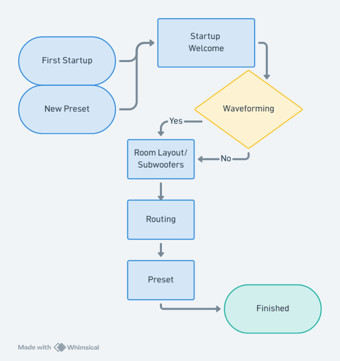
Startup
The configuration wizard launches automatically on first boot or when creating a new preset.
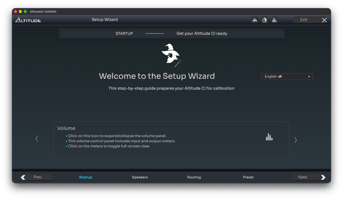
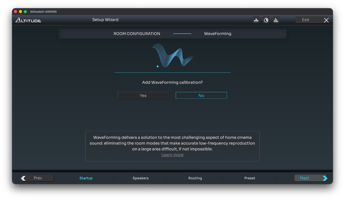
It begins with the Startup step, which includes:
- Welcome
Information about the system clock, network connection, basic/expert mode and language selection. - WaveForming Selection
A simple Yes/No question.
If WaveForming is enabled, additional calibration steps will appear later in the workflow.
For more information about the Startup step of the configuration, please refer to the dedicated configuration startup article.
Speaker Declaration (Basic or Expert Mode)
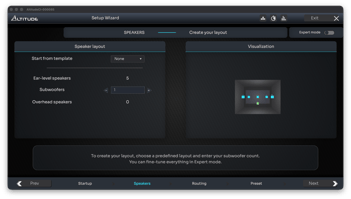
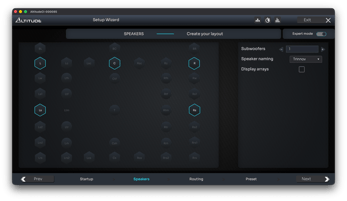
Used to declare all speakers and subwoofers in your system.
- Basic Mode (left)
Select a predefined layout template and the number of subwoofers. - Expert Mode (right)
Manually select speakers and channel names for any immersive format, using the top-view layout interface.
For more information about speaker declaration, please refer to the dedicated Speaker Declaration article.
Routing
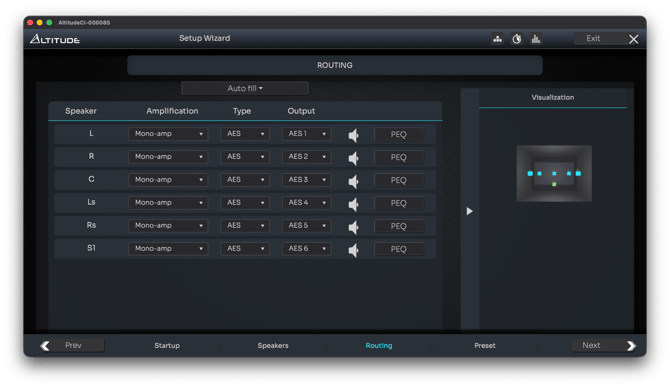
Assign each declared channel to a physical output.
This step includes:
- Choosing the output type (analog, AES/EBU, Dante/AES67)
- Assigning a physical output to each channel
- Optional PEQ on outputs
- Declaring whether speakers are full-range or multi-way
- Testing each output using pink noise
Caution: Depending on system gain, output levels may be high. Reduce amplifier gains if necessary.
Please refer to the dedicated Speakers & Sources Routing article for more information.
Preset
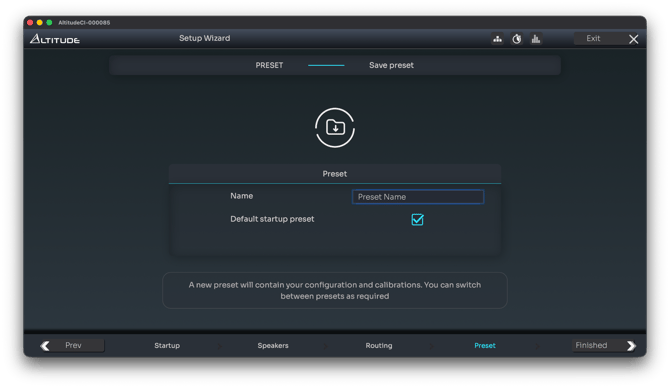
The last configuration step:
- Name the preset
- Save it
- Choose whether this preset should become the default preset
The wizard will then prompt you to start the Calibration Wizard.
For more information about presets, refer to the Save Presets article.
NOVA Configuration Wizard
.png?width=407&height=255&name=Nova%20Configuration@1.25x%20(1).png)
Startup
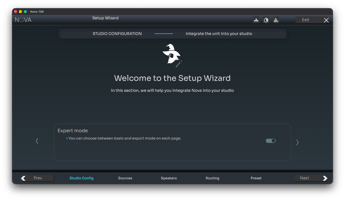
- Welcome
Information about the system clock, network connection, basic/expert mode, language selection, and consent to maintain access to Trinnov cloud services. - Default Configuration
This question determines the entire workflow:- Monitoring → Ticked → NOVA becomes the monitor controller. Unticked → an upstream monitor controller will handle source/speaker switching and volume control
- Immersive → Ticked → Enables up to 12 channels via Dante for Immersive configurations. Limited to 48khz and not compatible with Waveforming. Unticked → NOVA is limited at 6 Optimizer channels and can benefit from Analog/ AES/ Dante connections along with 96khz of sampling rate playback.
For more information about the startup step and monitor controller selection, please refer to the dedicated configuration startup article.
If Monitor Controller = Yes
Source Declaration (Basic or Expert Mode)
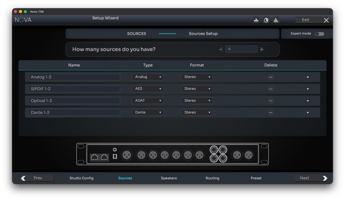
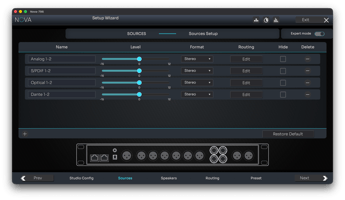
Because NOVA uses PCM inputs rather than bitstreams, sources must be declared manually.
For each source:
- Select the input connector
- Choose the format (mono, stereo, 5.1 for non immersive/ up to 12.0 for immersive)
- Define routing
- Apply input level offsets (expert mode)
Please refer to the dedicated Source Declaration article for more information.
Speaker Set Declaration (Basic or Expert Mode)
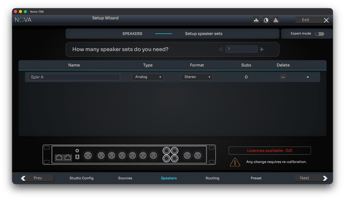
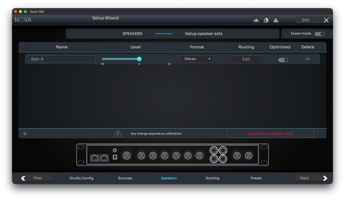
Multiple speaker sets may be defined, optimized or unoptimized.
For more information about speaker declaration, please refer to the dedicated Speaker Declaration article.
Routing Overview (Basic or Expert Mode)
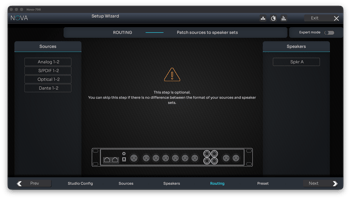
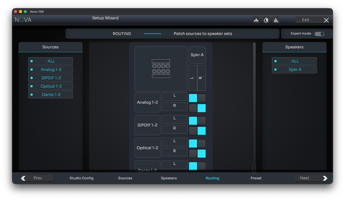
This step is optional but in Expert mode, a simplified matrix showing how declared sources and speaker sets connect through the system.
Please refer to the dedicated Speakers & Sources Routing article for more information.
If Monitor Controller = No
Full Routing Matrix
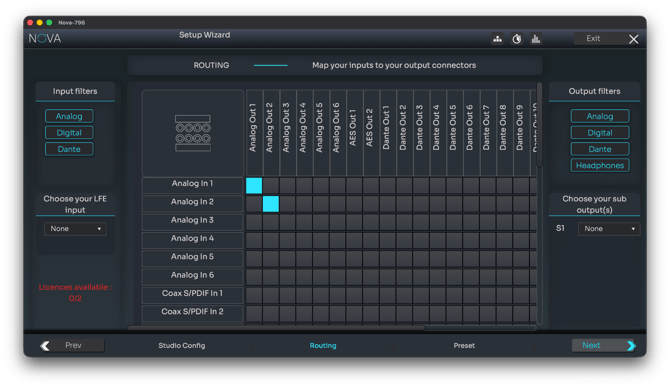
A flexible routing interface to map physical inputs to outputs exactly as required by the external monitor controller.
Please refer to the dedicated Speakers & Sources Routing article for more information.
Preset
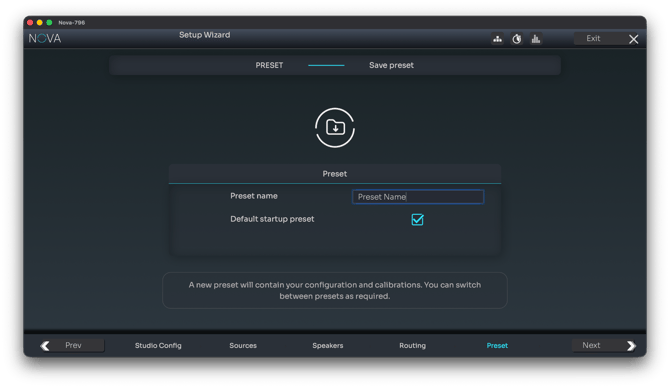
The last configuration step:
- Name the preset
- Save it
- Choose whether this preset should become the default preset
The wizard will then prompt you to start the Calibration Wizard.
For more information about presets, refer to the Save Presets article.
For more information on the NOVA Immersive mode, refer to the NOVA Immersive article
Calibration Workflow Overview
The calibration workflow is almost identical on both platform families, except for the optional WaveForming steps on AltitudeCI when it was selected during Startup.
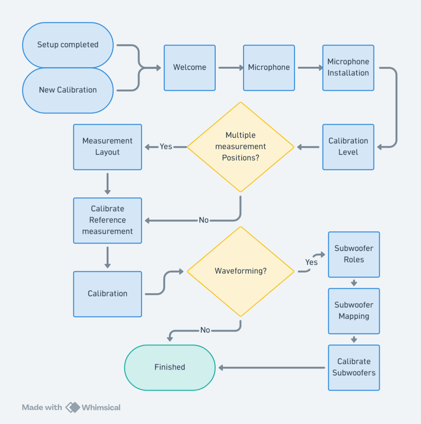
AltitudeCI Calibration Workflow with WaveForming
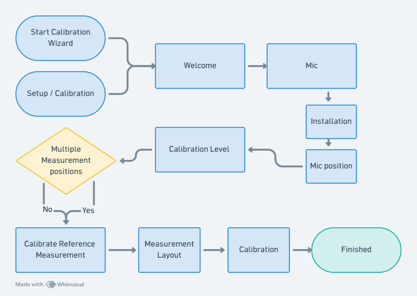
NOVA Calibration Workflow
Note: Waveforming can be chosen at the Setup Wizard step. If you said No to this feature, the Waveforming step will not appear during the calibration process
AltitudeCI & NOVA Calibration Wizard
Welcome
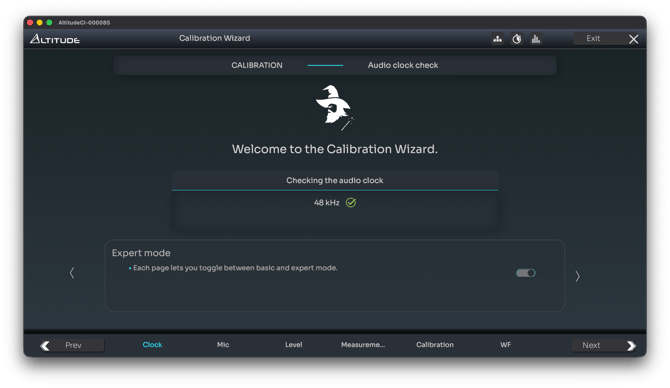
A brief reminder about network connectivity, preset context, basic/expert mode, and a mandatory check that the system clock is set to 48 kHz, required for calibration.
Microphone
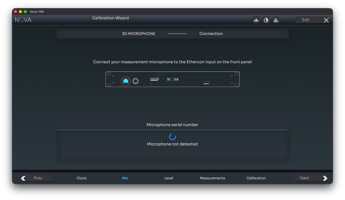
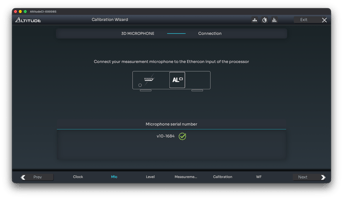
The wizard manages microphone setup in two substeps:
- Connection and Initialization
The unit powers the microphone and retrieves the appropriate compensation file. - Placement Guidance
An informational page shows where to place the microphone at the reference listening position.
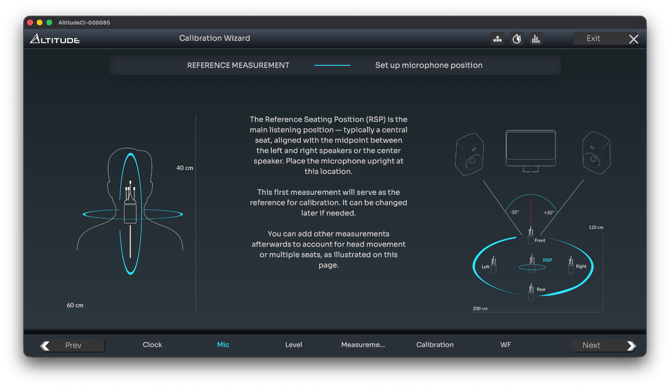
Fore more information about microphone, please refer to the dedicated Microphone connection & compensation file, Connect the 3D Measurement Microphone and Place the 3D measurement microphone articles.
Calibration Level
Pink noise plays through all speakers to verify that the calibration level is correct.
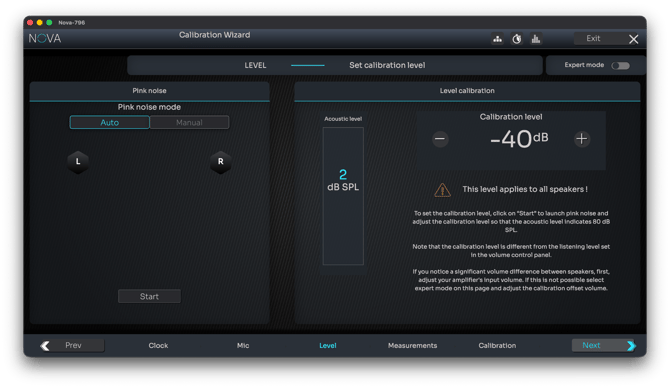
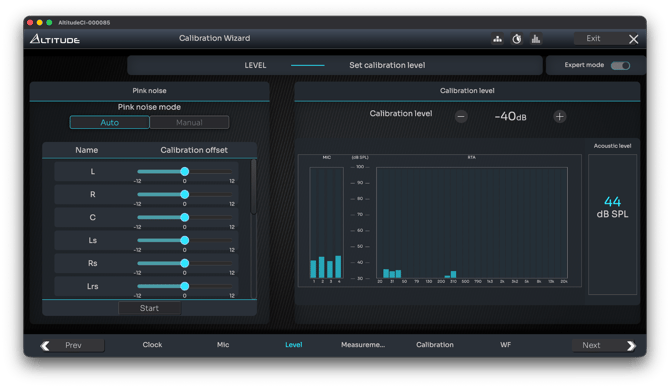
Please refer to “Set the calibration levels” for more details.
Measurement
A branching decision adjusts the rest of the process:
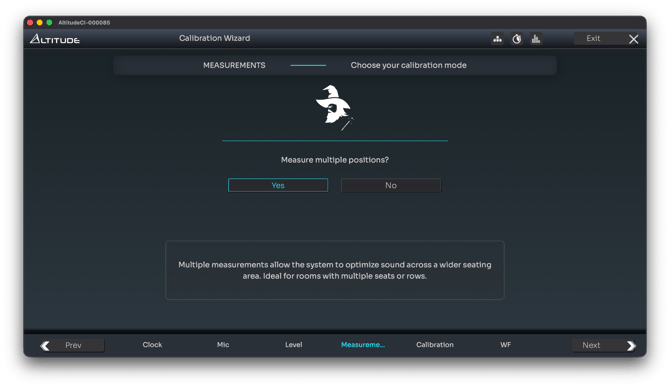
Multiple measurements? Yes/No
If Yes:
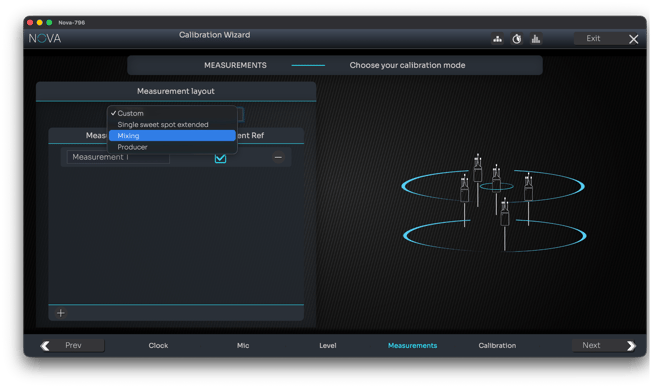
- NOVA offers measurement presets
- AltitudeCI and NOVA allow a custom measurement set to be created
If No:
- The wizard displays an additional reminder for positioning the microphone at the reference seat
Please refer to the dedicated Single or multiple measurements article for more information.
Active Xover Calibration (Basic or Expert Mode)
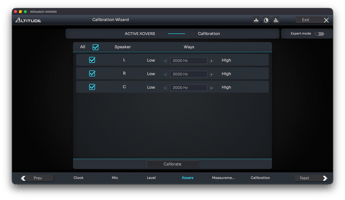
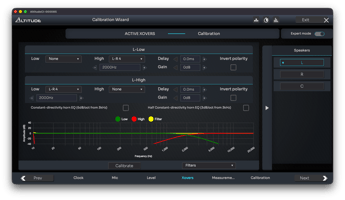
This step appears only when one or more speakers are declared as multi-way during speaker declaration. It is available in Basic and Expert modes.
Trinnov provides a unique semi-automatic active crossover calibration system. Because the crossover settings directly affect the acoustic response of a loudspeaker, this calibration acts as a pre-calibration stage: it ensures that each driver band is aligned, level-matched, and time-coherent before the global Optimizer measurement.
Please refer to the dedicated Active crossover calibration article for more information.
Calibration
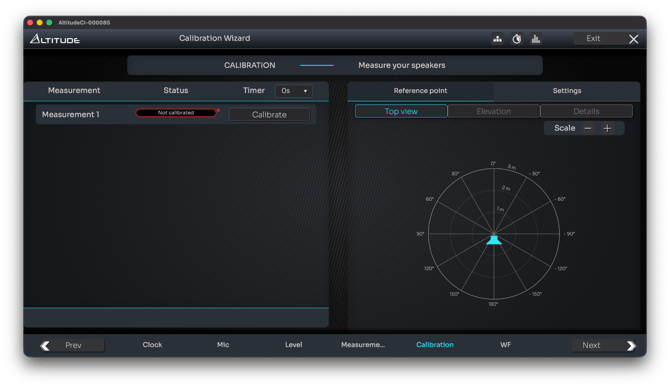
The system performs the measurement(s) and computes the initial correction filters.
Please refer to the System calibration article for more information.
WaveForming (AltitudeCI Only)
If WaveForming was enabled during configuration:
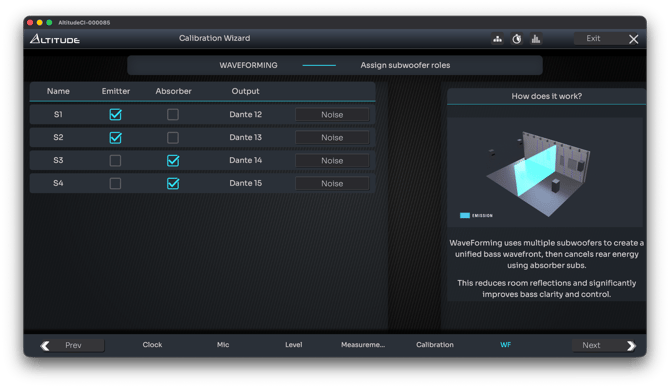
- Subwoofer Assignment
Minimum of four subwoofers required; declare emitters and absorbers. Please refer to Set subwoofer roles for WaveForming for more information.
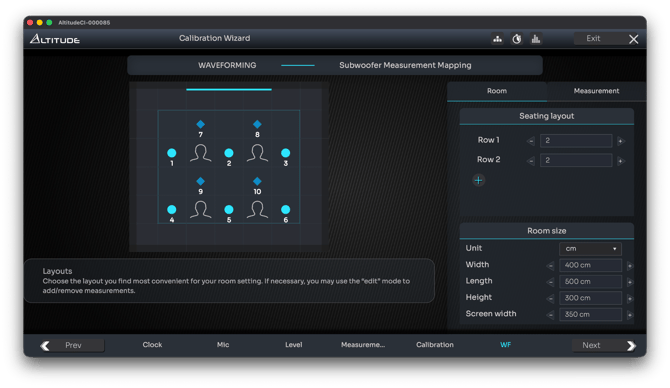
- Measurement Mapping
Automatically suggested based on room dimensions and seating; can be modified by the user. Refer to WaveForming measurement mapping for more information.
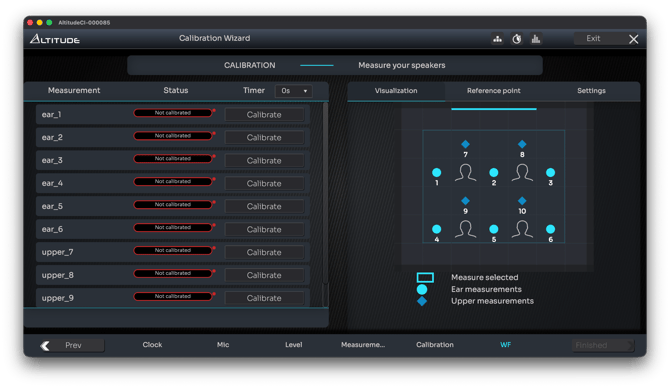
- WaveForming Calibration
The processor measures all subwoofers at all mapping positions. Please refer to WaveForming calibration for more information.
After the Calibration: Next Steps
Once calibration is complete:
- AltitudeCI recommends visiting the Graphs, Optimizer, or Decoder pages to finalize the system.
NOVA recommends visiting Graphs, Optimizer, or Monitoring depending on the workflow.
From here, users may review the acoustic graphs, fine-tune the system or start listening to their systems directly.