![Logo_Trinnov_Black_CMJN.png]](https://kb.trinnov.com/hs-fs/hubfs/ISE%202024/Logo_Trinnov_Black_CMJN.png?height=50&name=Logo_Trinnov_Black_CMJN.png)
Summary
- Before you begin
- Prepare your room
- Understanding the calibration page
- Run the calibration
- Verify your results
- Save your preset
Before you begin
Calibration requires proper setup. Ensure you've completed these steps first by reading those articles:
-
Place the Microphone - Position at the Reference Seating Position (RSP)
-
Connect the Microphone - Verify proper connection and power
-
Set Calibration Levels - Ensure a robust and smooth measurement
-
Active Crossover Calibration - If you are using active crossovers
Prepare your room
For accurate measurements, optimize your room conditions:
Room setup
- Clear the path between speakers and microphone - Remove any obstacles
- Silence the room - Turn off air conditioning, close windows and doors
During calibration
- Stay still - Movement can affect speaker localization during the first measurement
- Avoid interruptions - Don't press buttons or change settings while calibration is running
Understanding the calibration page
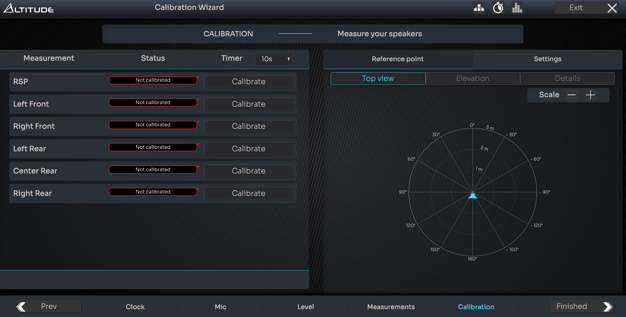
The calibration interface has two main sections:
Left panel - Measurement status
- Shows calibration progress
- Displays which measurements are complete
- Offers a countdown timer (5s, 10s, 30s) to leave the room before test signals play
Right panel - Reference point display & Settings
Visualizes speaker placement from two perspectives:
- Top view - Overhead map showing speaker positions relative to the microphone
- Elevation - Side view confirming left and right speakers are level
- Details - Numerical data for every speaker’s reference measurement:
- Positions shows 3D localization
- Levels
- Delays
- Bandwidth
Note: use the Settings menu to adjust calibration parameters if you encounter any issues during calibration.
For more information, please refer to Calibration Troubleshooting.
Run the calibration
Understanding the Measurement Sequence
For each speaker and subwoofer, the acoustic measurement process begins with a noise floor measurement. This allows the Optimizer to capture the sound signature of the background noise in the room. The system then adjusts the test signals accordingly, boosting or pre-emphasizing frequency ranges where noise might otherwise mask the useful signal.
The measurement sequence itself involves three Maximum Length Sequence (MLS) bursts:
- The first two bursts verify that the measurements meet the minimum quality requirements and are consistent.
- The third burst is the actual measurement used by the processor to compute the calibration filters.
Note: During calibration, you will therefore hear three distinct bursts from each speaker and subwoofer. This is normal and indicates the measurement process is functioning correctly. If you encounter any error messages, refer to the Calibration Troubleshooting article for guidance.
Start calibration
- Click Calibrate to begin
- Noise floor measurement - Brief silence as the system measures room noise
- Test signals play - You'll hear impulses from each speaker in sequence
- Expect 3 impulses per speaker
- If more than 3 play, see troubleshooting.
- Move to next position (if taking multiple measurements)
- After the RSP measurement, positioning can be less precise
- Keep microphone upright and at similar height
- See Taking Multiple Measurements for guidelines
- Click Compute when all measurements are complete
Tip: Speakers appear in real-time during measurement for the reference point. Check that left and right speakers are symmetrically positioned to verify correct microphone alignment.
Verify your results
After computation completes, review the Positions tab:
- Check speaker symmetry - Left and right speakers should be closely matched
- Verify distances - Confirm they match your physical setup
- Review elevation - Speakers should be at appropriate heights
If results look correct, proceed to save.
Tip: The visual displays (top view and elevation) make it easy to spot any obvious measurement errors at a glance.
Save your preset
The Setup Wizard saves your calibration automatically. However:
- Manual saves required for any later changes to the preset
- Unsaved edits will be lost if you switch presets or power off
See Managing Presets for details on saving and organizing your configurations.
Tip: After calibration, export a backup of your preset immediately. See Backup Your Processor.
Next steps
After successful calibration:
- Enable Bass Management - Optimize low-frequency distribution
- Enable WaveForming - Advanced room correction (if available)
- Set Up Target Curves - Customize your sound preference
- Backup Your Processor - Protect your calibration data