![Logo_Trinnov_Black_CMJN.png]](https://kb.trinnov.com/hs-fs/hubfs/ISE%202024/Logo_Trinnov_Black_CMJN.png?height=50&name=Logo_Trinnov_Black_CMJN.png)
Summary:
- What is a preset?
- Accessing the preset management page
- Quick Preset Management
- Managing presets from the dedicated preset page
- Next step
What is a Preset?
For a detailed explanation of what a preset is and its role in your Trinnov processor, please refer to the dedicated What is a Preset? article.
Accessing the Preset Management Page
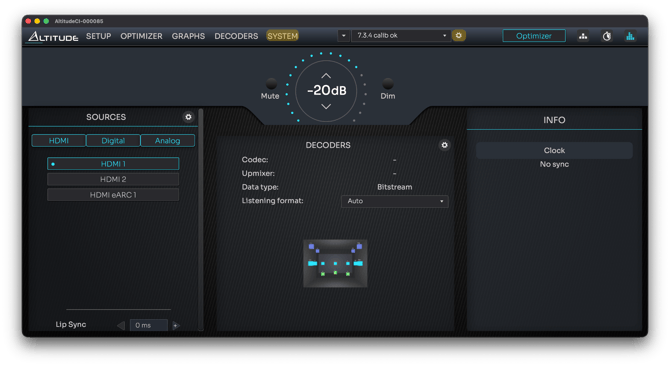
You can access preset management in two ways:
- Shortcut from the Home Page: Click the gear icon next to the preset dropdown menu.
- System Menu: Navigate to System > Preset.
Quick Preset Management
The preset section on the Home Page/Top Menu allows you to quickly manage presets during fine-tuning sessions. It consists of three main options, accessible via the arrow menu next to the preset dropdown:
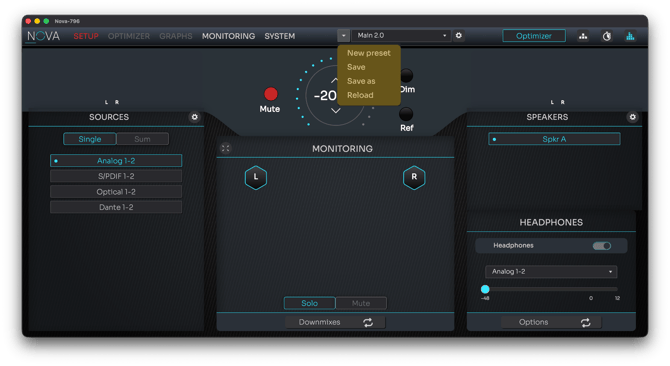
Preset Options on the Home Page
|
Option |
Description |
|
New Preset |
Starts the configuration wizard to create a new preset from scratch. |
|
Save |
Saves the current settings to the currently loaded preset, regardless of changes made. |
|
Save As |
Saves the current settings as a new preset. You will be prompted to enter a name for the new preset. |
|
Reload |
Reverts to the last saved version of the currently loaded preset, discarding any unsaved changes. |
Caution: saving a preset overwrites the existing version without confirmation. Use "Save As" to create a new preset unless you are certain about the changes and explicitly intend to replace the current preset.
Tip: Ideal for comparing different settings during a fine-tuning session by overriding or creating new presets.
Managing Presets from the Dedicated Preset Page
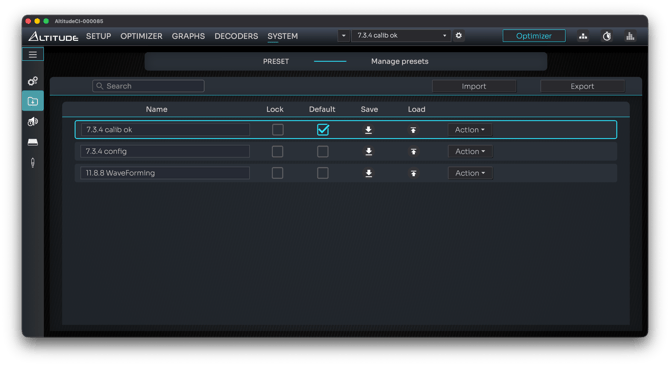
For comprehensive preset management, such as cleanup, renaming, duplicating, importing, or exporting, use the dedicated Preset Management page.
Preset List
The list displays all available presets, with the following options for each:
Preset List Options
|
Option/Feature |
Description |
|
Name |
Displays the name of the preset. |
|
Lock |
Prevents accidental deletion. Locked presets cannot be deleted. |
|
Default |
Sets the preset as the startup default. Only one preset can be set as default at a time. |
|
Save |
Saves the current state of the preset. |
|
Load |
Loads the selected preset. |
|
Action Menu |
Provides additional options: Duplicate, Export, and Delete. |
Action Menu Options:
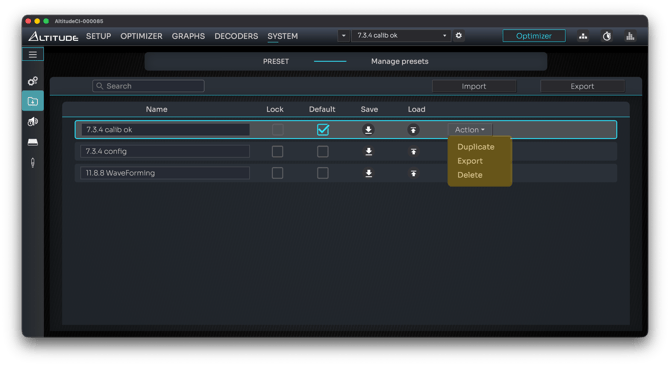
- Duplicate: Creates an identical copy of the preset, suffixed with (copy).
- Delete: Removes the preset. Not available for locked presets. Requires confirmation.
- Export: Exports the preset as a .tnz archive. A window will open for you to select the save destination.
Additional Functions (Top of the Page)
Additional Functions
|
Function |
Description |
|
Search Bar |
Helps you quickly find presets when managing a large number of files. |
|
Import |
Imports presets from your computer. |
|
Export |
Exports all presets as a single .tnz archive. Useful for backups. For more details, see the Backup Article. |
Caution: Not all presets are compatible with every processor or software version.
Next Steps
- For more information on backing up your processor, refer to the Backup Article.
- To learn about creating and configuring presets, visit the Setup & Calibration Workflow .