![Logo_Trinnov_Black_CMJN.png]](https://kb.trinnov.com/hs-fs/hubfs/ISE%202024/Logo_Trinnov_Black_CMJN.png?height=50&name=Logo_Trinnov_Black_CMJN.png)
Summary
- Understanding the Measurement Sequence
- Background Noise and Its Impact
- Crest Factor Too Low
- Unstable Position for Speaker
- Unable to Localize Speaker
To learn about the calibration process, please refer to Run Optimizer calibration, Active Crossover Calibration and Waveforming Calibration.
Understanding the Measurement Sequence
Calibration relies on a sequence of three MLS bursts to ensure accuracy.
Please refer to the Run Optimizer Calibration article for more information.
If errors occur, follow the steps below...
Background Noise and Its Impact
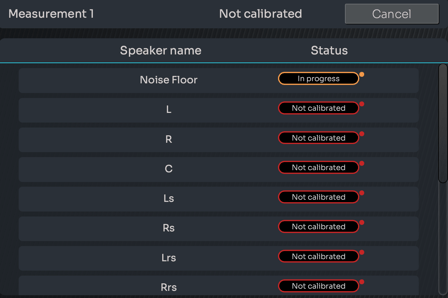
By default, the Optimizer measures the background noise of the room before each calibration. While this feature helps compensate for stable background noise, it can be problematic if the noise is unstable (e.g., intermittent HVAC, traffic, or people moving).
When to Disable Background Noise Measurement
It is recommended to turn background noise measurement off when the background noise in your room is unstable or unpredictable.
Keeping background noise measurement disabled may lead to inconsistent calibration results.
How to Disable Background Noise Measurement
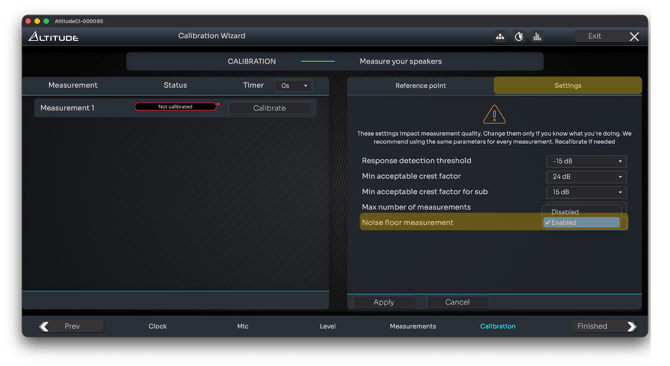
- Go to Calibration Settings.
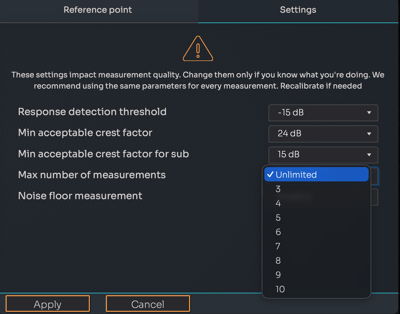
- Locate the option for Noise floor measurement.
- Disable this option to prevent the system from adjusting test signals based on unstable noise.
- Hit the Apply button to save your new calibration settings.
Crest Factor Too Low
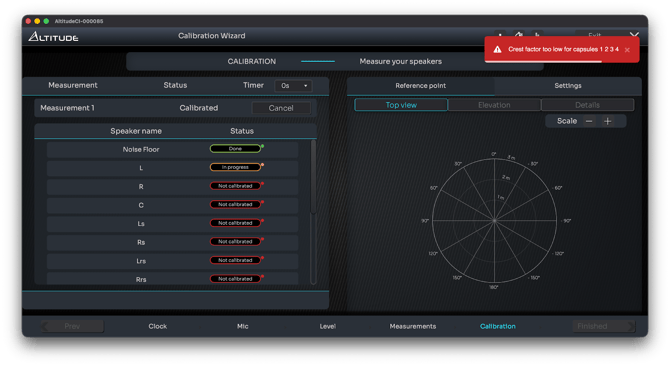
What It Means
This warning indicates that the dynamic contrast of the signal is insufficient for a clean measurement. Essentially, the peaks of the signal do not stand out clearly from the background noise. This is analogous to a low signal-to-noise ratio.
Common Causes

- High background noise (HVAC, projectors, fans, traffic, or people talking).
- Unperceivable low-frequency noise interfering with the measurement.
- Damaged microphone or incorrect input selection.
- Obstacles between the speaker and microphone (though this usually results in an "Unstable Position for Speaker" error).
Solutions
- Reduce Background Noise:
- Turn off noisy equipment.
- Close doors and windows.
- Postpone measurements if outdoor noise is unavoidable.
- Increase Calibration Level:
- Gradually raise the calibration level, but avoid excessively loud levels.
- Check Microphone Input:
- Verify the microphone is properly connected and powered (red LED should be lit for v9 or older models).
- Ensure the correct microphone input is selected (for non-AltitudeCI/NOVA products).
- Adjust Crest Factor Threshold:
- Go to Calibration Settings and reduce the "Min Acceptable Crest Factor" from the default 24 dB to 20 dB (or lower if necessary).
- For Subwoofers:
-
- The default minimum crest factor for subwoofers is 15 dB (lower than for speakers).
Warning: lowering this minimum crest factor threshold can reduce measurement quality.
Tip: Increasing the built-in high-pass frequency of subwoofers can improve crest factor.
Unstable Position for Speaker
What It Means
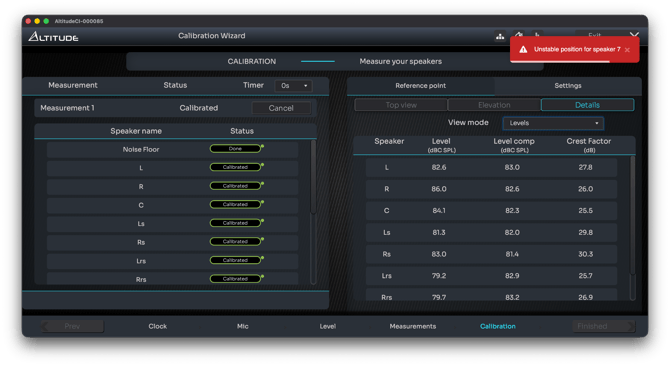
This error occurs when the system detects inconsistencies in the speaker's position during the measurement bursts. It can be caused by:
- Movement in the room (e.g., someone walking or shifting).
- An unstable microphone stand.
- Acoustic shielding (e.g., headrests, reflective surfaces like leather seats).
- Speakers with DSP-induced pre-ringing or phase linearization.

Solutions
- Remove Obstructions:
- Clear any objects blocking the direct sound path.
- Stabilize the Microphone:
- Ensure the microphone stand is secure and stable.
- Minimize Reflections:
- Cover reflective surfaces near the microphone with absorptive material (e.g., a blanket).
- Reposition the Microphone:
- Move the microphone slightly to avoid reflections or obstructions.
- Force Acoustic Measurement:
- If unresolved, go to Calibration Settings and set "Max Number of Measurements" to Unlimited to bypass speaker localization.
Unable to Localize Speaker
What It Means
This error indicates the system cannot detect a clear time reference or single main peak in the impulse response. Common causes include:
- Multiple peaks reaching the microphone (e.g., bipole/dipole speakers, super tweeters, or speaker arrays).
- Narrow speaker response (e.g., damaged tweeters or improper speaker orientation).
- Subwoofers with unclear peaks due to placement or phase issues.
Solutions
- Check Speaker Condition:
- Ensure speakers are functional and properly oriented toward the microphone.
- Reposition Speakers or Microphone:
- Adjust speaker or microphone placement to improve direct sound capture.
- Increase High-Frequency Response:
- Boost high frequencies if the speaker response is too narrow.
- Force Acoustic Measurement:
- If unresolved, set "Max Number of Measurements" to Unlimited in Calibration Settings to bypass localization.
Tip: Always save your preset after resolving errors to ensure changes are applied.