![Logo_Trinnov_Black_CMJN.png]](https://kb.trinnov.com/hs-fs/hubfs/ISE%202024/Logo_Trinnov_Black_CMJN.png?height=50&name=Logo_Trinnov_Black_CMJN.png)
Summary:
Before you begin
WaveForming calibration occurs after standard Optimizer calibration as part of the same preset creation workflow.
Ensure you've completed:
- Activate WaveForming - Selected "Yes" when creating the preset in the configuration startup
- Speaker Declaration - Declared all speakers including 4+ subwoofers
- Run Optimizer Calibration - Completed standard calibration including RSP measurement
- Set Subwoofer Roles for WaveForming - Assigned emitters (front) and absorbers (rear)
- WaveForming measurement mapping - defined your measurements map for WaveForming
Note: WaveForming calibration is separate from the Optimizer RSP measurements.
Time required: 10-60 minutes depending on the number of subwoofers and measurement positions
Understanding WaveForming calibration
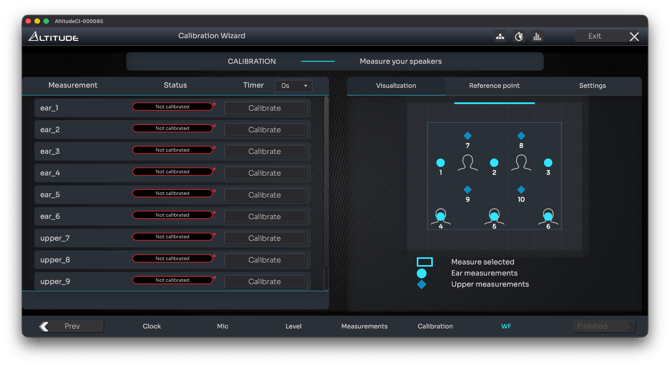
WaveForming requires measurements at two vertical positions to accurately map how bass waves propagate through the entire room volume:
Types of measurement
Ear-level measurements (seated listening height, ~1m from floor)
- Captures bass behavior at the primary listening plane
- Standard seated ear height for your room
Upper measurements (~500-750mm / ~30" above ear level)
- Captures bass behavior in the upper portion of the room
- Enables full 3D wavefront control
Measurement spacing requirements
The acoustic field must be properly sampled to achieve optimal WaveForming performance:
- Maximum 1 meter between any two adjacent measurement points
- Minimum 2 meters from front subwoofers to measurement zone
- Minimum 1 meter from measurement zone to walls/ceiling
Taking the measurements
Calibrate each measurement position to finalize your WaveForming setup.
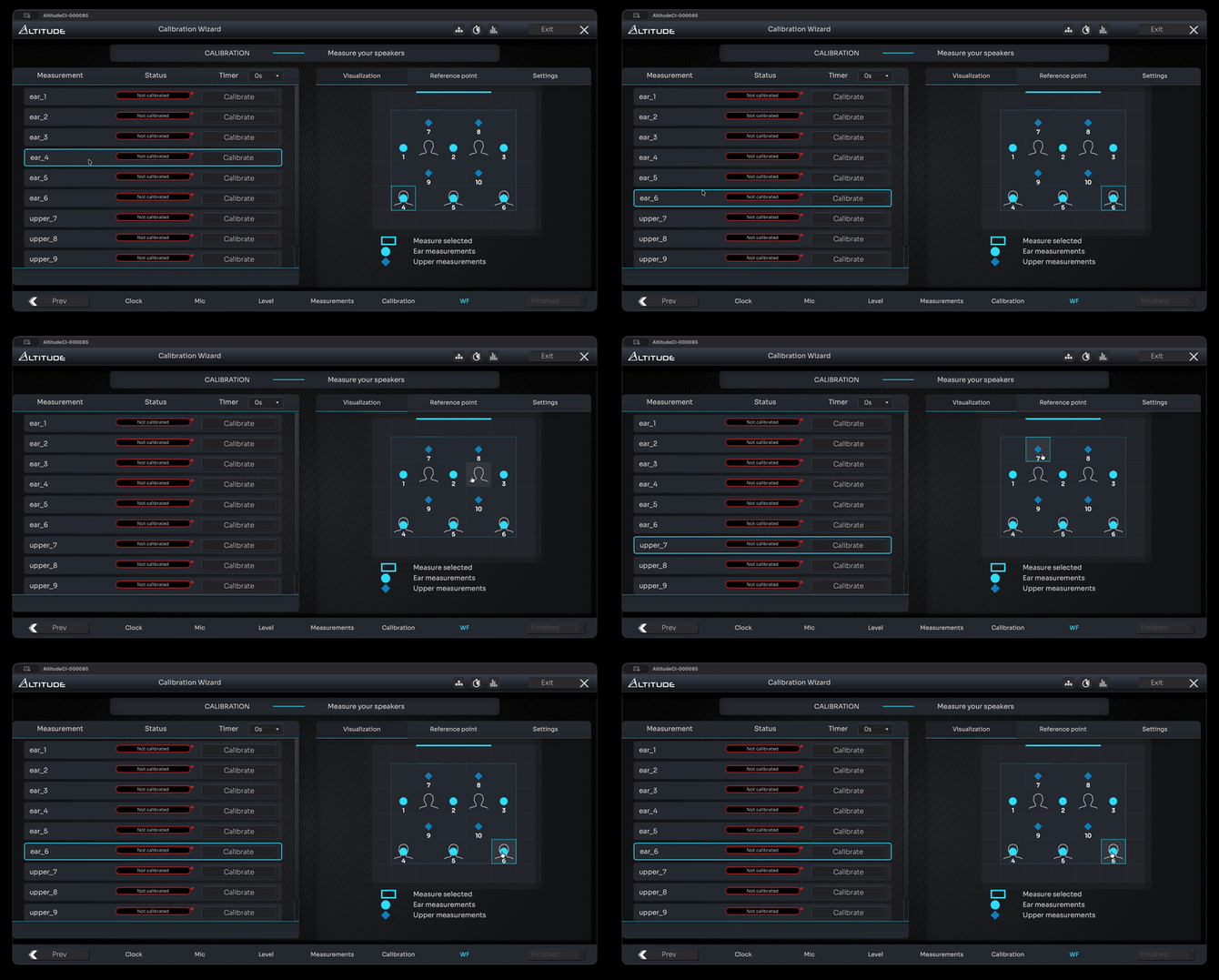
Understanding the interface
The WaveForming Calibration page is divided into two main sections:
- Left Table: Displays the list of measurements defined during the WaveForming Measurement Mapping step.
- Status: Each measurement is marked as Not calibrated, In progress, Completed, or Partial.
- Calibrate Button: Start the calibration process for the selected measurement.
- Timer Function: Delay the start of the measurement if you need to step out of the room.
- Right Map: shows a top-view representation of your room with all measurement positions.
- Interactive Highlighting: Hover over a measurement in the list or on the map to see its location highlighted, ensuring you always know which position to measure next.
Note: only subwoofers are measured during this step, making the process faster than the full Optimizer calibration, which measures all speakers and subwoofers.
Step-by-Step Process
- Prepare Your Environment:
- Ensure your room is quiet and free from external noise.
- Position your measurement microphone at one of the measurement location, as indicated on the map.
- Start the Calibration:
- Click the Calibrate button on the corresponding measurement on the left.
- Use the timer if you need to leave the room before the measurement begins.
- Monitor Progress:
- The status of each measurement updates in real time.
- Use the interactive highlighting to track which positions have been measured and which are next.
- Troubleshooting:
- If you encounter issues, refer to the Calibration Issues article.
- Access the Settings tab on the right side of the screen to adjust calibration parameters and resolve error messages.
- Complete All Measurements:
Repeat the process for each measurement position until all are marked as Completed.
Tip: Unlike Optimizer calibration, microphone orientation doesn't matter for WaveForming measurements - only vertical positioning is important.
Next steps
After WaveForming calibration:
- Click Finished to complete the calibration wizard, your preset will be saved with your WaveForming calibration data.
- Review the measurement graphs - see WaveForming Measurement Graphs to understand your results
- Adjust the Waveforming parameters and bass management settings to fine-tune the system.