![Logo_Trinnov_Black_CMJN.png]](https://kb.trinnov.com/hs-fs/hubfs/ISE%202024/Logo_Trinnov_Black_CMJN.png?height=50&name=Logo_Trinnov_Black_CMJN.png)
Summary
- Introduction
- Understanding Ethernet Ports Across Trinnov Products
- How to connect your Trinnov to your network
- Using Audio over IP (Dante / AES67)
- Avoiding Network Loops
- Troubleshooting Network Issues
Introduction
A stable network connection is required for:
- Detecting the processor in the Trinnov Apps
- Accessing the web-based UI and calibration tools
- Installing firmware updates
- Activating licenses
- Using Audio over IP (Dante / AES67) on supported products
Note: regardless of the processor: the Trinnov App and the processor must be connected to the same local network (same subnet) to communicate.
This applies whether the connection is:
- Wired Ethernet
- Wi-Fi (Altitude32 only)
- A network shared from a computer
- A direct Ethernet cable between the processor and your laptop
Note: The connection is usually straightforward for all processors, but network modes (specific to NOVA and AltitudeCI) can influence how the device behaves on the network.
Understanding Ethernet Ports Across Trinnov Products
Different processors have different hardware layouts:
Single Ethernet Port: Altitude16/Altitude32
- Altitude16
- Altitude32
These products have a single Ethernet port, which handles all control, updates, and IP communication.
Caution: Do not confuse the PC Ethernet port with the unused audio-network ports. Refer to the Front & Rear Panels article for details.
Two Ethernet Ports: NOVA & Amplitude16
NOVA and Amplitude16 are equipped with 2 different Ethernet ports.
NOVA supports multiple network modes:
- Switched (default): ports act like a built-in Ethernet switch, sharing one network/subnet. However, the processor still exposes two distinct IP interfaces, one for Control and one for AoIP, each with its own IP address.
- Redundant: two ports carry separate Dante networks (Primary and Secondary). Both run in parallel for seamless audio failover on physically isolated paths.
- Isolated: each port operates on a different IP interface and cannot pass traffic between networks.
Tip: only in Switched mode do both ports behave like a simple network switch. In other modes, the ports have dedicated roles.
The optional Dante input board of the Amplitude16 features 2 ports and a fixed network mode. By default, it is configured as a switch.
Note: Dante redundancy might be supported on the Amplitude16 in the future, and will need to be modified in the Dante Controller application.
Three Ethernet Ports: AltitudeCI
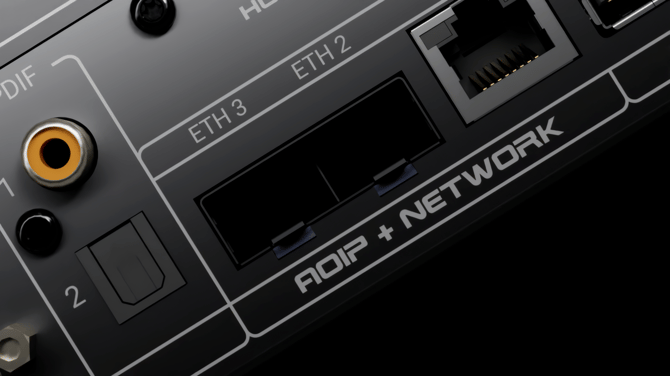
AltitudeCI was designed for audio over IP and comes with three ethernet ports:
- Ethernet 1: RJ45
- Ethernet 2: SFP
- Ethernet 3: SFP
Each port can fulfill a specific role determined by the Network Mode of the AltitudeCI.
Its four different network modes are crucial when using Dante or AES67.
By default, AltitudeCI is configured in a specific network mode called Isolated 2&3 which means that control and AoIP traffic are isolated.
Note: an SFP RJ45 adapter is provided and included in the box. See the “What’s in the box” article for more details.
Why Network Modes Matter
Caution: the default network mode of your processor (NOVA: switched, AltitudeCI: Isolated 2&3) may not be suitable for your intended use and may potentially create network loops if connected in a way that is not compatible with your network topology.
Indeed, here is why:
- Network modes define whether control traffic and Audio over IP traffic share the same interface.
- Some modes restrict which port provides internet access or Trinnov App visibility.
- Using the wrong mode can make the processor invisible to the network.
When using AoIP, always verify which port is intended for Control, and which is dedicated to Audio over IP.
For more information, please read this article which explains network modes in detail.
How to connect your Trinnov to your network
Most Common Network Topologies
Connecting your processor to your network depends on your network topology: the structure of your network and the devices that compose it.
In most cases in home or simple environments:
- Your computer will be connected to the internet via your set-top box / ISP box over WiFi,
- Your Trinnov processor will be wired to the same router directly or via a switch.
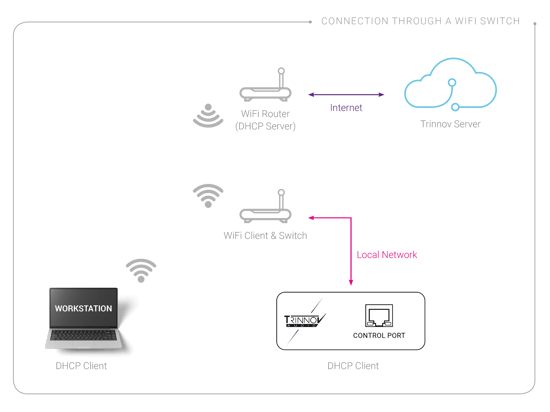
Computer connected to the router via WiFi
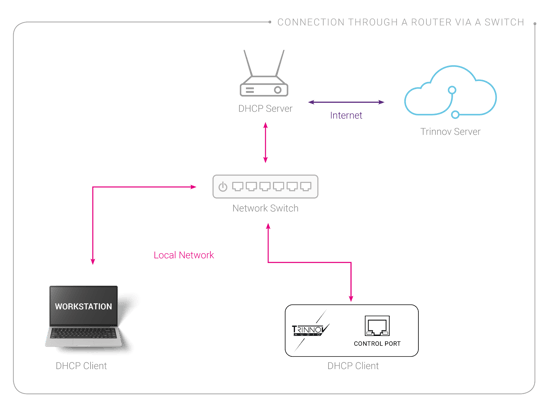
Computer and Trinnov connected to the router via a switch
However, there are many other ways to connect your processor to your local network or computer, such as:
- Direct Connection between your processor and your computer
- Sharing WiFi / Internet from your computer
For more examples and explanations, please refer to the dedicated articles:
Note: connecting your Trinnov processor via a network cable is recommended
Ensuring your Network Connection works
Unless you are not connecting your processor directly to your computer, here are the different steps to follow to make sure you can log in to your Trinnov processor using the Trinnov app of web UI:
- Use a DHCP-enabled network
Most routers assign IP addresses automatically.
This is the recommended default and mostly the case in consumer environments. - Make sure both devices share the same subnet
Example of a matched subnet:- IP address of the processor: 192.168.1.42
- IP address of the computer: 192.168.1.10
If the processor is on a different subnet (e.g., 192.168.2.x), the Trinnov App cannot detect it.
- Check Ethernet link activity
Both the processor port and the switch/router should show link LEDs. - Use a high-quality Ethernet cable
Bad or unshielded cables can cause link instability or negotiation problems.. - Allow up to 20–30 seconds for an USB-Ethernet adapter to establish a link
- Check for firmware updates
Outdated software can cause timeouts or detection issues. - If migrating between installations
A processor configured with a fixed IP may become unreachable.
In this case, perform a Network Reset. - If still not visible
Simplify the network to a direct connection or basic router setup.
Note: please refer to Modify Network Settings to learn how to reset network settings
Wi-Fi: What You Need to Know
General Recommendations
- Prefer wired Ethernet connections for all processors.
- Wi-Fi is acceptable only for control, never for AoIP.
- Temporary setups can use Wi-Fi sharing from a laptop.
Product-Specific Wi-Fi Behavior
- Altitude32
- Can operate as a Wi-Fi client
- Can act as a Wi-Fi access point for direct connections
- All other processors
- No built-in Wi-Fi; use an external router or internet sharing from a computer.
Using Audio over IP (Dante / AES67)
For NOVA & AltitudeCI:
- AoIP introduces strict requirements for port selection, PTP clocking, and routing.
- When AoIP and control traffic share the same port, traffic management and jitter must be considered.
- When control and AoIP are separated, selecting the correct network mode is essential for detection and reliability.
General recommendations:
- Use wired networks only for AoIP.
- Use DirectLink between AltitudeCI and Amplitude16 for simple setups
- Avoid unmanaged switches if passing significant AoIP traffic.
- Keep Dante/AES67 clock domains stable.
- When in doubt, start with a simple network (single router or single switch).
Please read the dedicated section about Audio over IP for more information.
Avoiding Network Loops
A network loop occurs when two network ports create multiple paths between the same points in a network.
This causes:
- Severe slowdowns
- Packet storms
- Loss of connectivity
- Devices disappearing from the network
Network loops can cause performance degradation, unexpected port blockages, or complete network outages.
Common examples:
- Connecting both NOVA or AltitudeCI ports to the same switch while in “switched” mode
- Connecting a router → switch → processor → router again via a second link
- Using unmanaged switches with multiple interlinks
Tips: to avoid loops:
- Never connect two ports of the same processor to the same switch unless you know the required mode.
- Never link two switches together using more than one cable unless using STP-enabled managed switches.