![Logo_Trinnov_Black_CMJN.png]](https://kb.trinnov.com/hs-fs/hubfs/ISE%202024/Logo_Trinnov_Black_CMJN.png?height=50&name=Logo_Trinnov_Black_CMJN.png)
Summary:
Introduction
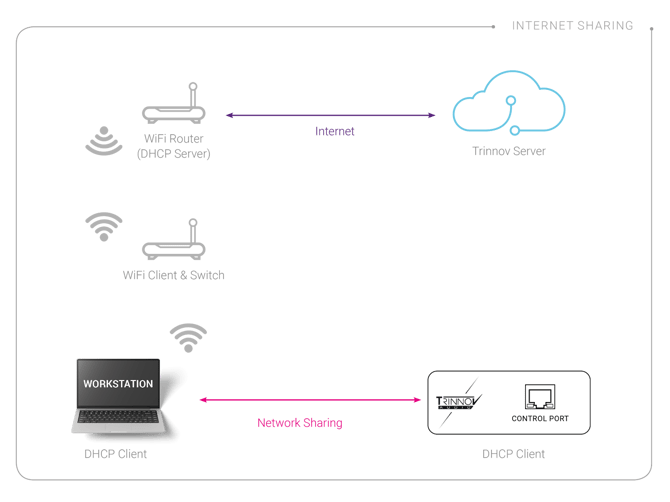
In many music studios and small production rooms, the computer is often the only device connected to the Internet, with no wired network available for external equipment. If your Trinnov is installed in such an environment, you can still give it network access by sharing your computer’s Wi-Fi connection over Ethernet.
This allows the Trinnov processor to appear in the Trinnov App, receive updates, activate licenses, and complete its initial setup, even without a router or wired network switch.
This article explains how to share your Internet connection from macOS or Windows 10/11 so the Trinnov can connect through your computer using a direct Ethernet link or a USB-C to Ethernet adapter.
Caution: not all USB-C to Ethernet adapters provide stable, fully compliant networking. Low-quality adapters may prevent the Trinnov Processor from appearing in the Trinnov App or may interrupt connectivity during setup. For best results, use a reliable, standards-compliant adapter (Gigabit-capable, well-shielded) and avoid unbranded or very low-cost models.
Warning: Internet Sharing on macOS or Windows is useful for giving the Trinnov basic network access in Wi-Fi-only environments, but it is not suitable for Dante or any Audio-over-IP workflow.
Internet Sharing on macOS
Suppose you wish to share Internet access to the Trinnov via macOS or a USB-C to Ethernet adapter, You can follow the steps below:
1. Connect the Trinnov processor: power on and connect it to your computer via a direct Ethernet connection or a USB-C to Ethernet adapter.
2. Disable Other Network Connections: on your Mac, deactivate Wi-Fi or disconnect the Ethernet cable that connects your computer to the router.
3. To access Sharing Settings, navigate to System Settings → General → Sharing, then deactivate Internet Sharing if it is enabled.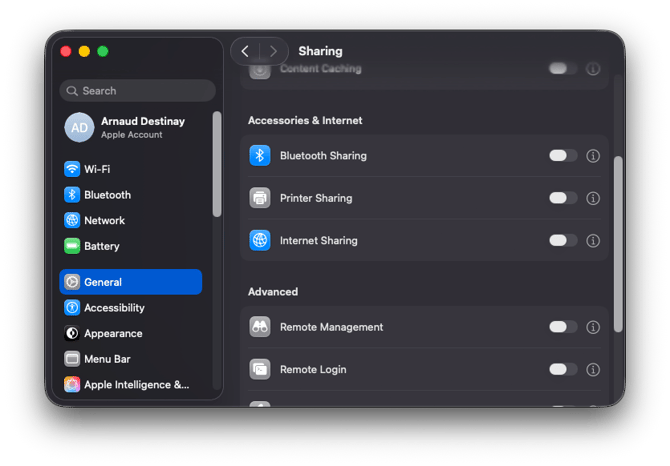
-
- Click the "i" icon next to Internet Sharing.
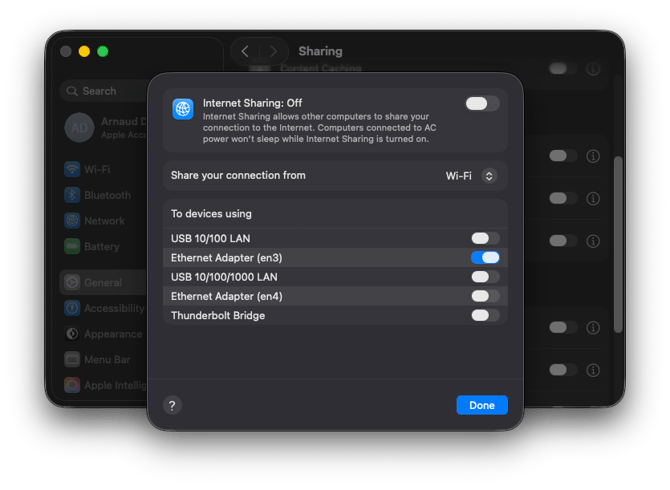
- Under "Share your connection from", select Wi-Fi or Ethernet, depending on how your Mac connects to the Internet.
- Under "To computers using", enable the port to which the Trinnov Processor is connected.
5. Restore Network Connection: reactivate Wi-Fi or plug the Ethernet cable back into your router.
6. Enable Internet Sharing: turn on Internet Sharing and wait about 30 seconds.
7. Check the Trinnov App, The Trinnov unit should now be visible in the Trinnov App.
Internet Sharing on Windows 10/11
Internet sharing to the Trinnov via your PC can be done as follows:
- Connect the Trinnov: power on and connect your Trinnov processor to your computer via a direct Ethernet connection or a USB-C to Ethernet adapter. Activate the Wi-Fi on your computer and connect to your router.
- Open File Explorer: press Windows + E, then right-click on network in the left panel. This will open the Network and Sharing Center.
- In the Network and Sharing Center, click on Change adapter settings.
- Right-click on the Wi-Fi network connected to the internet and select Properties.
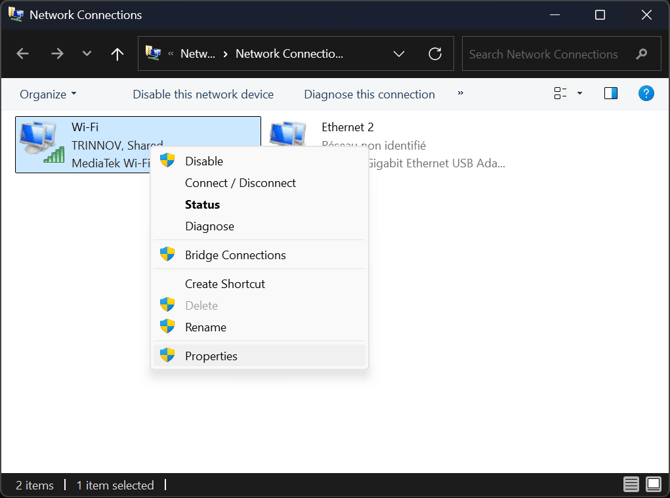
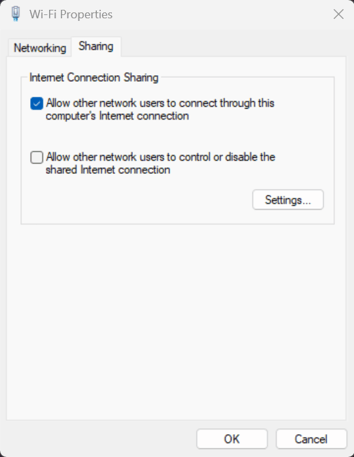
- Go to the Sharing tab, check “Allow other network users to connect through this computer’s Internet connection” and wait about 30 seconds.
- Check the Trinnov App: the NOVA unit should now be visible in the Trinnov App.