![Logo_Trinnov_Black_CMJN.png]](https://kb.trinnov.com/hs-fs/hubfs/ISE%202024/Logo_Trinnov_Black_CMJN.png?height=50&name=Logo_Trinnov_Black_CMJN.png)
Summary
- Why back up your processor?
- Two recommended backup methods
- Understanding backup files
- Restoration process
- Important Warnings and Tips
Note: This article focuses on new-generation Trinnov products with the updated user interface. For older processors using USB backup, please refer to the relevant documentation.
Why Back Up Your Processor?
Backing up your Trinnov processor is essential to safeguard your calibration and settings.
Tip: once your calibration is complete, create a backup and store it safely. This ensures you can restore your system to its optimal state if a full unit restoration is ever required.
Two Recommended Backup Methods
1. Machine Backup via Trinnov App (macOS & Windows)
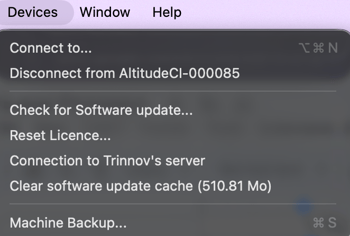
- Open the Trinnov App on your desktop.
- Navigate to the Devices menu and select Machine Backup.
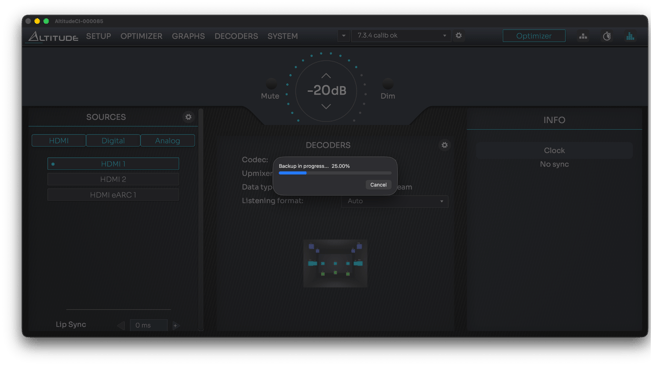
- You will be prompted to create a destination folder for the backup.
Note: For detailed instructions on installing and starting the app, refer to the Install and Start the App article.
2. Backup Presets via the Preset Menu
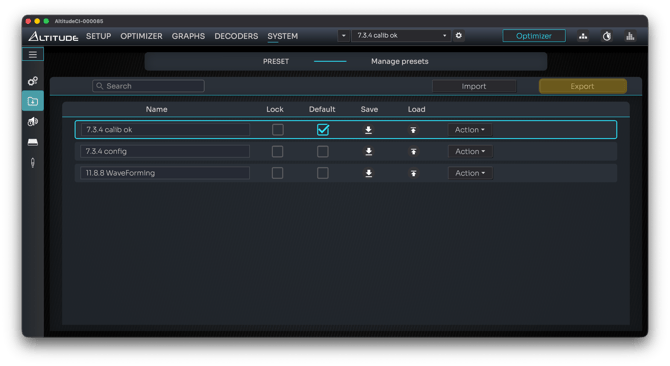
- Access the Preset Menu on your processor.
- Use the Export function to save all presets as a single .tnz archive.
Note: For more details, see the Managing Presets article.
Understanding Backup Files
- Each preset is stored as a .tnz archive, whether exported individually or via a full machine backup.
- The Export function in the Preset Menu creates a single .tnz file containing all presets from the unit.
Warning: While target curves, excursion curves, and manual EQ are included in the preset backup, source configuration cannot be saved and must be reconfigured manually after restoration.
Restoration Process
- To restore a backup, use the Import function in the Preset Page.
- Same model as the original unit.
- Same or newer software version.
- Sufficient output channels activated (equal to or more than the original).Ensure the destination processor meets the following requirements:
Exception: Presets from Altitude processors running software versions older than 5.0 are not compatible with version 5.0 or newer.
Important Warnings and Tips
Warnings: always back up your processor before performing an import to avoid data loss.
Tips
- Name your presets explicitly and include the following information:
- Backup date
- Trinnov processor model
- Software version
- Number of speakers/subwoofers in the preset (to verify license requirements for restoration)