![Logo_Trinnov_Black_CMJN.png]](https://kb.trinnov.com/hs-fs/hubfs/ISE%202024/Logo_Trinnov_Black_CMJN.png?height=50&name=Logo_Trinnov_Black_CMJN.png)
The Trinnov app is your control center for configuring and operating your Trinnov processor. Available for desktop and mobile devices, it provides everything from complete system setup to intuitive daily control.
Summary:
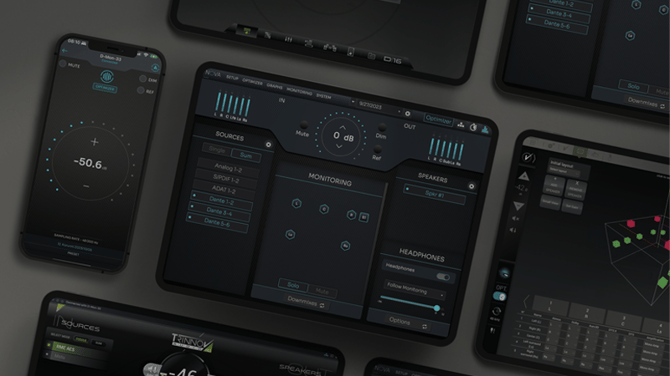
Why use the Trinnov app?
The Trinnov app provides a unified experience across all your devices, eliminating the need to access the web User Interface (UI) or your Trinnov Processor through a web browser. Using the app instead of the web interface offers several advantages:
Consistency and simplicity - Quicker access to your processor's interface with all tools in one place, including backups and firmware updates
Professional workflows - Desktop-exclusive features like EUCON gateway for Avid Control surfaces, D-MON meters for pro-audio monitoring, and La Remote gateway support.
Everyday convenience - The mobile app replaces traditional remotes with clearer visual feedback and instant access to presets and listening formats.
Desktop features (macOS & Windows)
The desktop application provides complete control and configuration capabilities:
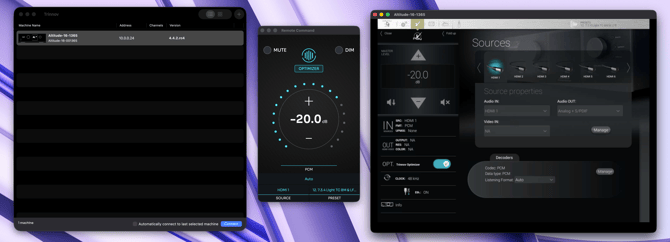 macOS Trinnov app
Core functionality
- Full configuration of your Trinnov processor through an intuitive interface
- Local license installation and firmware updates for NOVA and AltitudeCI
- Complete backup management for all Trinnov processors
- Remote Control view that mirrors the mobile app for quick daily adjustments
Professional features
- EUCON gateway - Connect Avid Control surfaces for monitoring (requires macOS EUCON/Gateway build or Windows app)
- La Remote gateway - Control remotely installed processors by connecting La Remote to your laptop
- Meters page - Professional audio monitoring tools for advanced workflows
Note: The macOS EUCON/Gateway build contains third-party code required for EUCON functionality. Use the App Store build unless you need EUCON or gateway-specific features.
System requirements
- macOS: macOS 11 or later (available on Mac App Store)
- Windows: Windows 10/11 (64-bit)
Mobile features (iOS, iPadOS, Android)
Mobile apps deliver streamlined control for everyday use:
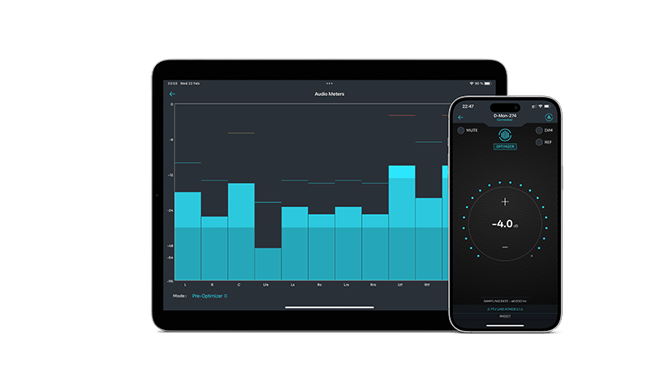
Trinnov app on mobile devices
Daily control features
- Volume, mute, and input selection
- Preset switching and listening format adjustments
- Quick access to frequently used settings
Device-specific capabilities
iPad
- Full landscape and portrait layout support
- Complete access to the processor's user interface
- Optimized for larger screen real estate
iPhone and Android phones
- Portrait layout optimized for one-handed use
- Essential controls for daily operation
Important: Full system configuration requires the desktop application. Mobile apps are designed for control and monitoring, not initial setup or advanced configuration.
System requirements
- iOS/iPadOS: iOS 15 or later (recommended), available on App Store
- Android: Available on Google Play Store
Downloading the Trinnov app
Desktop platforms
macOS
From the download page, choose:
- Mac App Store version – Standard build for most users
- EUCON/Gateway build – Only if you need EUCON support for Avid Control surfaces or gateway features
Alternatively, search "Trinnov" directly in the Mac App Store.
Windows
Download the Windows installer from the link above. Compatible with Windows 10/11 (64-bit).
Mobile platforms
iOS and iPadOS
- Open the App Store
- Search for "Trinnov"
- Download and install the app
Android
- Open Google Play Store
- Search for "Trinnov"
- Download and install the app
Installing the app on desktop
macOS installation
- Launch the downloaded app from the Mac App Store
- If prompted, grant necessary permissions for network access
- The app is ready to use immediately
For EUCON users:
- Download the Trinnov EUCON/Gateway build instead of the standard App Store version
- Install following the on-screen prompts
- Enable EUCON in the app's settings after launch
Windows installation
- Locate the downloaded installer file
- Double-click to run the installer
- Follow the installation wizard
- Launch the Trinnov app from the Start menu or desktop shortcut
Tip: Ensure your computer and Trinnov processor are connected to the same local network before launching the app.
Installing the app on mobile
iOS and iPadOS
- Tap the Trinnov app icon on your home screen after download completes
- Grant local network permissions when prompted (required to discover your processor)
- The app will automatically search for Trinnov processors on your network
Android
- Open the Trinnov app from your app drawer
- Accept any permission requests for network access
- The app will scan for available processors
First launch and connection
Connecting to your processor
When you first launch the desktop or mobile app:
- Automatic discovery – The app scans your local network for Trinnov processors
- Select your device – Choose your processor from the list of discovered devices
- Connection established – The app connects and displays the main interface
Caution: Ensure your computer or mobile device is connected to the same network as your Trinnov processor. If no devices appear, check your network settings and confirm the processor is powered on.
Quick start for NOVA and AltitudeCI (desktop only)
Before connecting for the first time:
- In the list of discovered devices, check for Licenses & Updates buttons next to your processor
- Install any required licenses for your processor
- Check for and apply the latest firmware update
- The app will handle installation locally via USB or network connection
Note: License installation and firmware updates can only be performed through the desktop application.
Enabling professional features (desktop)
For EUCON gateway:
- Ensure you're using the macOS EUCON/Gateway build or Windows app
- Open Settings within the Trinnov app
- Enable the EUCON gateway option
- Your Avid Control surface should now detect the Trinnov processor
For La Remote gateway:
- Connect La Remote hardware to your laptop via USB
- Open the Trinnov desktop app
- The app automatically acts as a gateway to processors on remote networks
- Select the processor you wish to control
Common questions
For common questions, please refer to Trinnov app - Frequently Asked Questions.