![Logo_Trinnov_Black_CMJN.png]](https://kb.trinnov.com/hs-fs/hubfs/ISE%202024/Logo_Trinnov_Black_CMJN.png?height=50&name=Logo_Trinnov_Black_CMJN.png)
A Trinnov preset is a complete saved configuration that defines everything about how your system operates, from speaker layouts and calibration data to processing settings and target curves. Presets allow you to instantly switch between different acoustic profiles optimized for various content types, listening scenarios, or user preferences.
Summary
What is stored in a preset
Each preset is a self-contained configuration file that includes:
- Speaker configuration and calibration data - Speaker layout, room correction filters, time/phase alignment
- Routing and processing - Input/output assignments, EQ curves, delays, crossovers, target curves
- User preferences - Codec settings, volume offsets, bass management parameters
- WaveForming data - Subwoofer optimization settings (if enabled)
Note: Once calibration is complete, you can duplicate and modify presets without recalibrating, unless you add/remove speakers or enable new features requiring fresh measurements. See Managing Presets for details on duplicating and modifying presets.
Common use cases
Content optimized presets
Create different presets for various content types, for example:
- Music - Flat or musical target curve
- Movies - Enhanced bass response
- TV/Streaming - Dialogue clarity
- Night mode - Reduced bass energy to minimize disturbance
Professional workflows
- Mastering vs mixing - Different reference curves for production stages
- Client review - Consumer-friendly sound profiles
Multi-configuration setups
- Full system vs stereo - Switch between complete array and 2-channel
- Alternative speaker sets - Different drivers in the same space
Tip: You can switch presets directly from the Trinnov mobile app or using La Remote (for NOVA), making it easy to change configurations from your listening position.
How presets work
Creating your first preset
When you first power on your Trinnov processor, the Calibration Wizard guides you through creating your initial preset. This includes speaker declaration, Optimizer calibration, and (optionally) WaveForming calibration.
Check Setup & Calibration Workflow for the complete initial setup workflow.
Creating additional presets
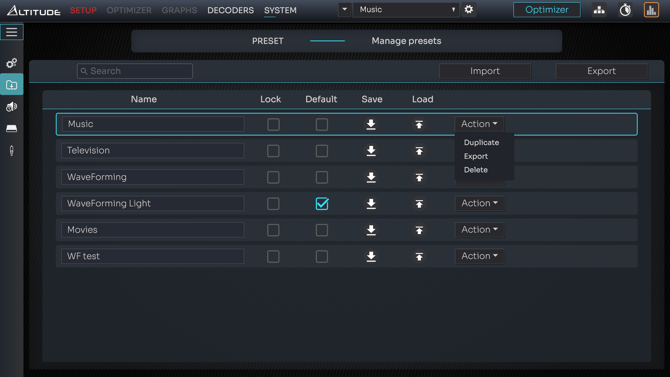
You can create new presets by:
- Duplicating existing presets - Copies all calibration data; modify settings without recalibrating
- Creating from scratch - Run the Calibration Wizard again (required for major speaker changes)
See Managing Presets for detailed instructions.
Storage considerations
The number of presets you can save depends on system complexity, available storage, and whether WaveForming is enabled (WaveForming presets require significantly more storage).
If you reach storage limits, delete unused presets or back them up externally. See Preset Backup & Restore.
Tip: Create a "reference" preset that you never modify, then duplicate it for experimentation. This ensures you always have a known-good configuration to return to.