![Logo_Trinnov_Black_CMJN.png]](https://kb.trinnov.com/hs-fs/hubfs/ISE%202024/Logo_Trinnov_Black_CMJN.png?height=50&name=Logo_Trinnov_Black_CMJN.png)
Summary:
- When to use the web interface
- Before you begin
- Finding your processor's IP address
- Accessing the web interface
- Browser compatibility
When to use the web interface
The web interface is particularly useful in the following scenarios:
Quick access without installation - Access your processor from any computer on the network without installing software.
Guest or temporary devices - Control your system from a visiting technician's laptop or a temporary workstation.
Linux users - The Trinnov app is not available for Linux. The web interface is your primary method for accessing and configuring your processor.
Network troubleshooting - Verify connectivity when the app cannot discover your processor.
Note: For macOS, Windows, iOS, iPadOS, and Android users, the Trinnov app is recommended over the web interface. The app provides enhanced features like local firmware updates, backup management, and professional tools such as EUCON gateway support.
Before you begin
Ensure the following requirements are met:
- Your Trinnov processor is powered on and connected to your local network
- Your computer or device is connected to the same network as the processor
- You have a compatible web browser installed (see Browser Compatibility section)
Finding your processor's IP address
To access the web interface, you need to know your processor's IP address. There are several methods to find this information:
Method 1: Check the processor's front panel display
Most Trinnov processors display network information on their front panel:
For Altitude16 and Altitude32:
Press the Menu button on the front panel
- Navigate to Setup > Network > Ethernet
- Turn the Source/Item selection knob to scroll through the settings
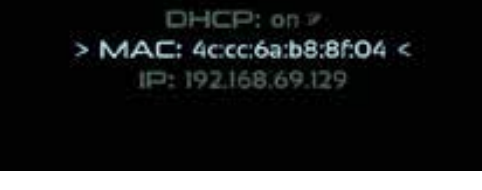
- The IP address will be displayed (e.g., 192.168.69.129)
- The display also shows DHCP status and MAC address
For other models:
- Navigate to the network settings menu on the processor's display
- Look for "IP Address" or similar network information
- Note the IP address (typically in the format 192.168.1.xxx or 10.0.0.xxx)
Method 2: Use your router's admin interface
- Access your router's administration page (commonly at 192.168.1.1 or 192.168.0.1)
- Log in with your router credentials
- Navigate to the connected devices or DHCP client list
- Look for a device named "Trinnov" or with the processor model name
- Note the assigned IP address
Accessing the web interface
Once you have your processor's IP address:
Step 1: Open your web browser
Launch a compatible web browser (Chrome, Firefox, Edge, or Brave recommended).
Step 2: Enter the IP address
- Click in the address bar
- Type the IP address of your processor (e.g., 192.168.1.100)
- Press Enter
The format should be:
http://192.168.1.100
Step 3: Wait for the interface to load
The web interface will load in your browser window. Initial load time may take 5-10 seconds depending on your network speed.
Step 4: Navigate the interface
Once loaded, you have full access to your processor's controls:
- Configuration menus and setup wizards
- Calibration tools and measurement data
- Input selection and preset management
- System settings and network configuration
The interface is identical to what appears in the desktop app's main window.
Browser compatibility
Recommended browsers
The following browsers provide the best experience with the Trinnov web interface:
- Google Chrome (version 90 or later)
- Mozilla Firefox (version 88 or later)
- Microsoft Edge (Chromium-based, version 90 or later)
- Brave (version 1.24 or later)
These browsers offer full support for the interface's modern web technologies and will render all controls correctly.
Limited compatibility
Safari - The Trinnov web interface does not render properly in Safari on macOS or iOS. Elements may appear misaligned, controls may not respond correctly, and the overall experience is degraded. Use Chrome, Firefox, or Edge on macOS instead.
Caution: If you are using Safari, switch to a compatible browser for proper functionality. Safari's rendering engine does not fully support the web interface's framework.
Linux browser recommendations
For Linux users, the following browsers are tested and recommended:
- Firefox
- Chromium or Google Chrome
- Brave