![Logo_Trinnov_Black_CMJN.png]](https://kb.trinnov.com/hs-fs/hubfs/ISE%202024/Logo_Trinnov_Black_CMJN.png?height=50&name=Logo_Trinnov_Black_CMJN.png)
Keeping your Trinnov processor updated ensures optimal performance, access to new features, and compatibility with the latest technologies.
Summary
- Prerequisites
- Process update:
Prerequisites
Before starting any update process, ensure you have:
- Trinnov Application installed on your computer (macOS or Windows)
- Processor connected to the same network as your computer
- Active internet connection for both devices
Time required: 15–30 minutes (depending on update size and network speed)
Note: Always back up your presets before updating. See How to backup your processor.
WARNING: Always switch off your power amplifiers before starting an update.
Update my Altitude16/32
The update procedure depends on your Altitude16/32 current software version.
Visual identification for Altitude16/32
You can quickly identify your software version by the interface appearance :
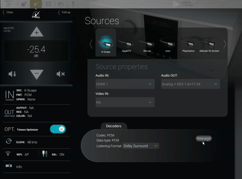
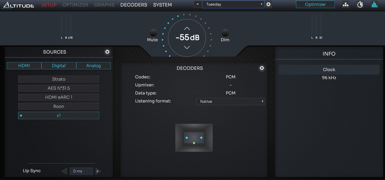
Version < 5.0 Version > 5.0
Update my AltitudeCI, NOVA & Altitude16/32 (with version > 5.0)
This procedure applies to every processors running any a software version above 5.0.
The Trinnov Application automatically checks for available updates. If a new version is available, a notification popup appears displaying.
You can click on the arrow to download the software.
- New version number
- Brief description of changes or improvements
- Estimated installation time
.png?width=537&height=412&name=Design%20sans%20titre%20(2).png)
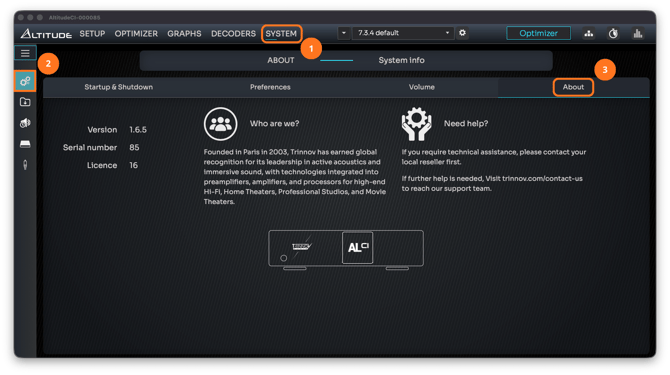
You can manually check for updates at any time by navigating follow the process bellow:
- Go to SYSTEM → GENERAL → ABOUT
- Click Install in the update notification popup
- Confirm the update when prompted to proceed
- Maintain connections – Do not disconnect power or network during the update
Troubleshooting
If you encounter problems during the update process, try these solutions.
Update fails to start
- Check network connectivity – Ensure both processor and computer have internet access
- Verify port 22 is open – Required for Trinnov server communication
- Restart the application – Close and reopen the Trinnov Application
- Check firewall settings – Ensure the Trinnov Application is not blocked
Update interrupted
If power loss or network disconnection occurs during the update:
- Power cycle the processor – Wait 10 seconds between power off and on
- Reconnect – Open the Trinnov Application and connect to the processor
- Resume update – The update should resume automatically
- Contact support – If issues persist, contact Trinnov support immediately
Cannot see available updates
- Check internet connection – The processor needs internet access to check for updates
- Verify server connection – In Network → Service, ensure "Connection to Trinnov's server" is checked
- Confirm update availability – Contact support to verify if updates are available for your serial number
- Check application version – Ensure you're running the latest Trinnov Application
Update completes but version unchanged
- Verify the update installed – Check System → About for the version number
- Clear application cache – Restart the Trinnov Application
- Check release notes – Confirm the update is compatible with your hardware
- Contact support – Provide your serial number and update details
Additional considerations
License updates
Purchased licenses are delivered through the same update mechanism:
- License updates appear automatically after purchase confirmation
- No separate installation process required
- Licenses are tied to your processor's serial number
- Verify licenses in System → About after updating
Scheduling updates
Best practices for update timing:
- Install during non-critical periods – Avoid updates before important sessions
- Allow 30–45 minutes for the complete process, including verification
- Test your system after updates before critical sessions
- Document your current version before updating for rollback reference
- Read release notes to understand changes and new features
Common questions
Do I need internet access after installing updates?
No. Internet access is only required during the update process. After installation, the processor operates normally without internet connectivity. However, internet access is needed for future update checks.
Will updates affect my presets and settings?
No. Firmware updates preserve your presets and system configuration. However, backing up your presets before major updates is strongly recommended as a precaution. In rare cases, major version changes may require preset adjustments.
Can I install updates using the mobile app?
No. Updates require the desktop Trinnov Application (macOS or Windows). Mobile apps cannot download and install firmware updates due to file size and system requirements.
How often should I update my processor?
Install updates when they become available, especially for bug fixes and security improvements. Trinnov releases updates periodically to improve performance, add features, and ensure compatibility with new technologies. Check for updates quarterly or when experiencing issues.
Can I downgrade to a previous version?
Downgrading firmware is generally not supported and may cause configuration issues. If you experience problems after updating, contact Trinnov support before attempting any version changes. They can provide guidance specific to your situation.
What if my update procedure doesn't match any of these?
If your product or version isn't covered in this article, contact Trinnov support or your authorized reseller. They can provide the correct update procedure for your specific configuration.