![Logo_Trinnov_Black_CMJN.png]](https://kb.trinnov.com/hs-fs/hubfs/ISE%202024/Logo_Trinnov_Black_CMJN.png?height=50&name=Logo_Trinnov_Black_CMJN.png)
Summary:
- Why setting the calibration level is essential before any measurement
- Safety and level consistency principles
- Prerequisites before starting
- Target calibration level
- How to set the calibration level in Basic and Expert mode
- Best practices to ensure reliable measurements
- What to do next in the wizard
Why setting the calibration level is essential before any measurement
Setting the calibration level is a mandatory step before any acoustic measurement, regardless of the application (home cinema, studio, cinema, or monitoring) or product.
Its purpose is twofold:
- Ensure sufficient acoustic level during calibration
The speakers must play loudly enough so the measurement captures the true speaker response, not background noise or room ambience. - Limit level discrepancies across the system
Excessive level differences between speakers or subwoofers reduce measurement quality and may indicate gain-structure issues.
Tip: whenever possible, large mismatches should be corrected upstream (amplifier input sensitivity, active speaker gain). If needed, temporary offsets can be applied in Expert mode.
This step of the Configuration Wizard is specifically designed to help you achieve this safely and efficiently, simply follow the on-screen instructions.
Warning: the calibration level set here is not the same as the listening level available from the Home page or the top bar. These are independent concepts. Refer to the Level and Volume Control article for details.
Safety and level consistency principles
For safety reasons, during a first calibration, the calibration level is automatically reduced to –40 dB.
Once set, this calibration level is stored and reused for future recalibrations.
Caution; if you change any system component that affects sensitivity (amplifiers, speakers, gain structure), you should reset and recheck the calibration level before measuring again to avoid incorrect measurements or potential hardware damage.
Prerequisites before starting
Before starting this step, make sure that:
- The 3D Measurement Microphone is:
- Connected
- Powered
- Placed at the Reference Seating Position (RSP)
- Stable and free from obstruction
- Environmental noise is minimized:
- HVAC turned off
- Projector noise reduced if possible
- Doors and windows closed
- All amplifiers and speakers are powered on
- Subwoofers have:
- Built-in filters disabled or
- Cutoff frequency set to the maximum value
Note: refer to the dedicated articles regarding microphone placement, microphone connection and reference seating position for more details.
Target calibration level
In both Basic and Expert mode, the objective is the same:
- All speakers must be able to reach 80 dB SPL
- Subwoofers should ideally reach the same level or slightly higher
This ensures a clean signal-to-noise ratio and consistent measurements across the system, unless there’s excessive background noise in the room..
How to set the calibration level in Basic and Expert mode
Basic mode
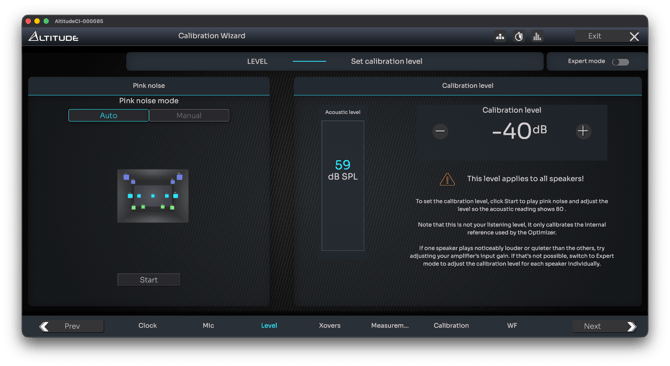
In Basic mode, calibration level adjustment is intentionally simple and visual.
Right side of the screen: test signal control
- A 3D room view shows the speaker layout (Altitude) or speakers are represented as polygons (NOVA)
- Speakers or subwoofers playing pink noise are highlighted in orange
- Two playback modes are available:
- Auto mode: pink noise plays sequentially through all declared speakers and subwoofers
- Manual mode: click a specific speaker to play pink noise through it
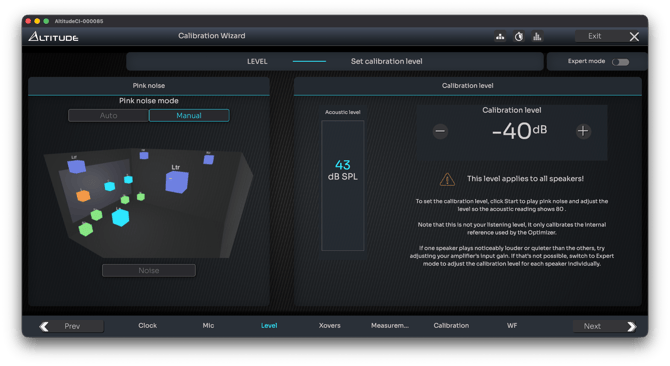
Left side of the screen: level monitoring
- A real-time acoustic level meter shows the SPL measured at the microphone
- The calibration level control allows you to raise or lower the overall level until the target is reached
Expert mode
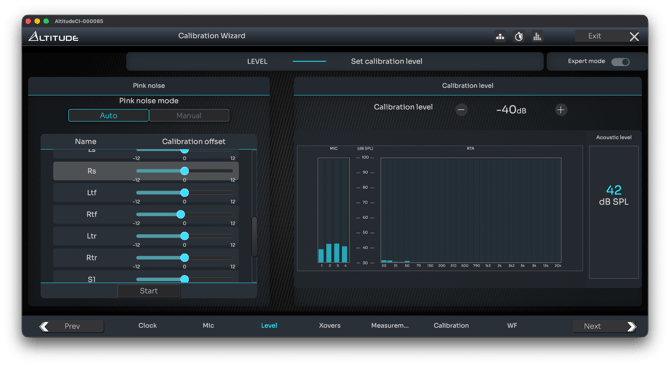
Expert mode provides deeper visibility and additional tools, while preserving the same Auto and Manual pink-noise playback modes.
Speaker list and calibration offset
- All speakers and subwoofers are displayed in a list
- Each channel includes a calibration offset, allowing you to pre-align levels before calibration
- This is useful when level differences are excessive
Caution: if you need offsets on the order of ±10 dB, this may indicate a system design issue (over- or under-powered speakers or subwoofers).
Advanced monitoring tools
Instead of a single level meter, Expert mode displays:
- The four individual microphone capsule input levels, useful to detect capsule or wiring issues
- A real-time frequency analyser, showing the speaker response while pink noise is playing and helping identify anomalies
Tip: if you have declared multi-way speakers, Expert mode is recommended. It allows you to test each way individually. In this case, do not target 80 dB per way, aim for 80 dB for the complete speaker.
Best practices and tips
- There is no benefit in exceeding 80 dB SPL for speakers; unless excessive background noise prevents proper calibration.
- Setting subwoofers slightly higher is generally recommended
- Measurement quality can be evaluated during calibration:
- Look for the Crest Factor indicator
- A higher crest factor indicates a cleaner and more reliable measurement
Next steps
Once the calibration level is correctly set, continue with:
- Active Crossover Calibration (if multi-way speakers are declared), or
- Single or Multiple Measurement Selection, depending on your system and room size