![Logo_Trinnov_Black_CMJN.png]](https://kb.trinnov.com/hs-fs/hubfs/ISE%202024/Logo_Trinnov_Black_CMJN.png?height=50&name=Logo_Trinnov_Black_CMJN.png)
Summary:
- How to Access Network Settings
- The Network Menu Structure
- Understanding the Ethernet Page
- What You Can Change
- Resetting Network Settings
How to Access Network Settings
From the User Interface (Trinnov App / Web UI)
- Open the Trinnov App or access the Web User Interface from a browser.
- Connect to your processor.
- At the top of the interface, click the Network icon (located between the Optimizer toggle and the clock menu).

From the Front-Panel Touchscreen
This obviously only applies to processors equipped with a front-panel touchscreen.
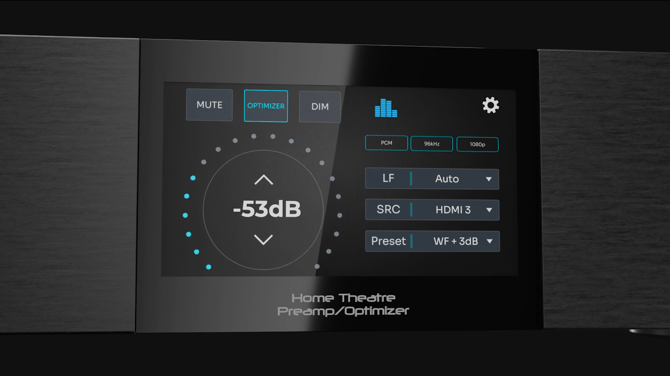
- Wake the touchscreen by tapping it.
- Open Settings (gear icon, top-right).
- Select Network.
This method is especially useful during first-time setup, or when a network misconfiguration prevents access through the Trinnov App / Web UI.
When to Use Each Access Method
Front-panel touchscreen
- First-time configuration
- Recovering from wrong IP settings
- On-site work without a laptop
Trinnov App / Web UI
- Day-to-day adjustments
- Reviewing detailed IP configuration
- Inspecting interface status
- Managing Dante functionality (via Dante Controller)
The Network Menu Structure
Ethernet vs. Service Tabs
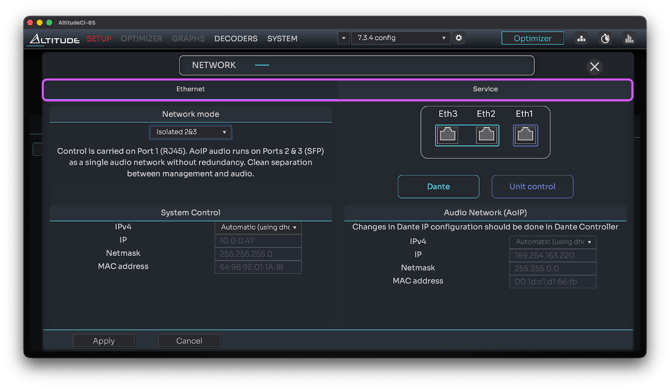
The Network page contains two tabs:
- Ethernet - Main network configuration (explained below).
- Service - Used for support/diagnostics. This article does not cover the Service tab, please refer to the Network Service Link article for more information.
Note: Wi-Fi is available only on Altitude32 units equipped with Wi-Fi hardware.
Overview of the Four Ethernet Quadrants
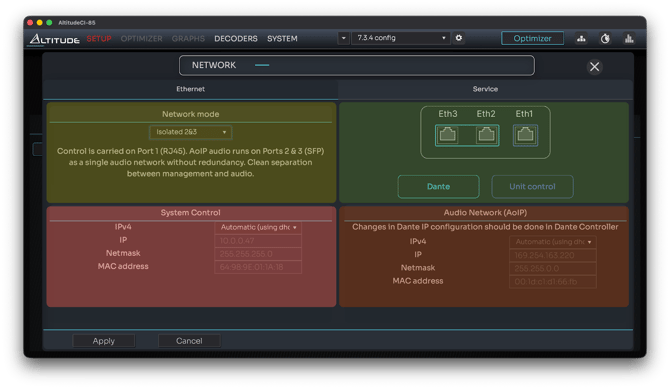
The Ethernet tab is divided into four areas:
- Top-Left: Current network mode + description
- Top-Right: Port assignment visualization
- Bottom-Left: System Control interface information
- Bottom-Right: Audio Network (AoIP) interface information
Understanding the Ethernet Page
Current Network Mode & Description (Top-Left Quadrant)
This area shows the selected network mode and a short explanation of how the ports behave in that mode.
For detailed explanations of all network modes, refer to the dedicated article Network Modes Explained.
Port Assignment Visualization (Top-Right Quadrant)
This graphic shows how each Ethernet port is used in the selected mode, for example:
- Control
- Dante Primary
- Dante Secondary
This visualization helps confirm how physical ports behave when changing mode.
System Control Interface (Bottom-Left Quadrant)
This section displays the IP configuration for the control interface, including:
- IPv4 mode: Automatic (DHCP) or Manual (fixed IP)
- IP address
- Netmask
- MAC address
When using Manual / Fixed IP, two additional fields appear:
- Gateway
- DNS server
Changes must be applied using the Apply button at the bottom of the page.
Audio Network (AoIP) Interface (Bottom-Right Quadrant)
This section shows IP information for the Audio-over-IP interface(s).
Key notes:
- AoIP configuration cannot be edited in this menu.
- Dante settings must be changed in Dante Controller.
- If Dante Redundancy is enabled, this section shows two interfaces (Primary & Secondary).
- These values reflect the active AoIP network mode regardless of which ports they appear on.
What You Can Change
Changing Network Mode
- Select a mode from the Network Mode dropdown.
- Click Apply to activate it.
Caution: Applying a new network mode will temporarily interrupt communication.
Changing IP Assignment Mode (Control Interface Only)
You may configure the control interface as:
- Automatic (DHCP) - The router assigns the IP.
- Manual / Fixed IP - You enter:
- IP address
- Netmask
- Gateway
- DNS server
After editing, click Apply.
Resetting Network Settings
Using NOVA front panel buttons
To reset NOVA network settings:
- Press and hold the Bypass button.
- Continue holding until it turns yellow.
- Release the button.
The unit resets the network interface and falls back to DHCP.
When a Network Reset Is Required
Use this procedure when:
- The processor no longer appears in the Trinnov App or Web UI
- A fixed IP is unknown
- A network mode was selected that isolates the control port from the rest of the network
- You moved the unit to a different network or router