![Logo_Trinnov_Black_CMJN.png]](https://kb.trinnov.com/hs-fs/hubfs/ISE%202024/Logo_Trinnov_Black_CMJN.png?height=50&name=Logo_Trinnov_Black_CMJN.png)
Summary:
Prerequisites for enabling WaveForming
Before enabling WaveForming, ensure the following conditions are met:
- Minimum of 4 subwoofers are installed and properly placed (refer to the WaveForming Subwoofer Placement Guidelines).
- WaveForming is activated during the configuration startup.
- WaveForming calibration is completed across all measurement points.
- Bass Management is engaged (see the Enable Bass Management article).
Warning: WaveForming requires Bass Management to be applied uniformly to all subwoofers, whether for speaker bass management or LFE playback.
How to Enable WaveForming
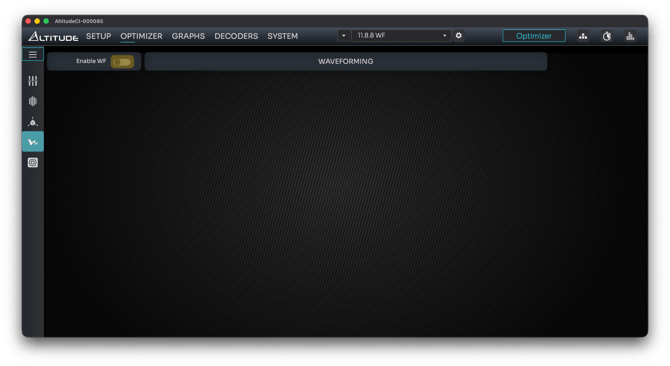
- Navigate to the WaveForming Interface: Go to Optimizer / WaveForming.
- Toggle WaveForming: Click the Enable WF button. The processor will compute the WaveForming filters.
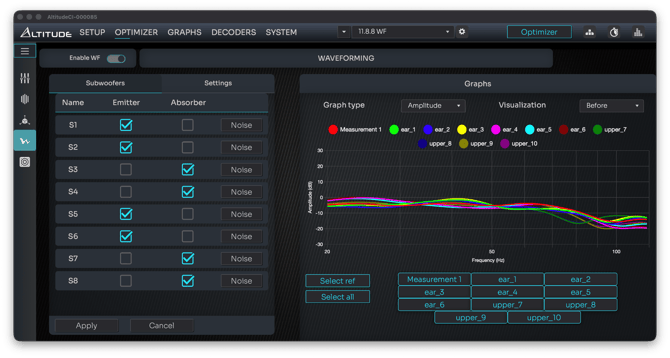
- Verify Subwoofer Roles: Double-check that the subwoofer roles are correctly assigned (refer to the Subwoofer Role Assignment article for more details).
- Review Performance Graphs: Examine the graphs to ensure optimal performance.
- (Optional) Estimate Optimal Decay: Click Estimate Optimal Decay and recompute the filters if needed.
Post-Enablement Steps
Once WaveForming is enabled:
- Save Your Preset: Explicitly save your preset with a clear name (e.g., "WF Enabled").
- Evaluate Bass Quality: Listen to your reference track and assess the bass quality and consistency across the listening area.
- Adjust Tonal Balance and Bass Level: Use the Target Curve, Excursion Curve, and Bass Management/LFE Gain for fine-tuning.