![Logo_Trinnov_Black_CMJN.png]](https://kb.trinnov.com/hs-fs/hubfs/ISE%202024/Logo_Trinnov_Black_CMJN.png?height=50&name=Logo_Trinnov_Black_CMJN.png)
Summary:
- Before you begin: wizard context
- Connect the microphone
- Compensation file handling in the wizard
- Best Practices
- Next Step: Reference Position & Microphone Placement
Before you begin: wizard context
This step marks the start of the Calibration Wizard. Before running any measurement, the processor must detect the Trinnov 3D Measurement Microphone and load the correct compensation file associated with that specific unit.
All microphone specifications, connectors and model differences are documented in the 3D Measurement Microphone article so this wizard step focuses only on:
- What the processor checks
- What the user must confirm
- How the workflow differs between v9 and v10 microphones
Connect the Microphone
To avoid duplication, the full 3D measurement connection procedure is available here: Connect the 3D Measurement Microphone.
Once the microphone is connected, return to the wizard and move on to the next section.
Compensation File Handling in the Wizard
v9 Microphones - Manual Upload Required
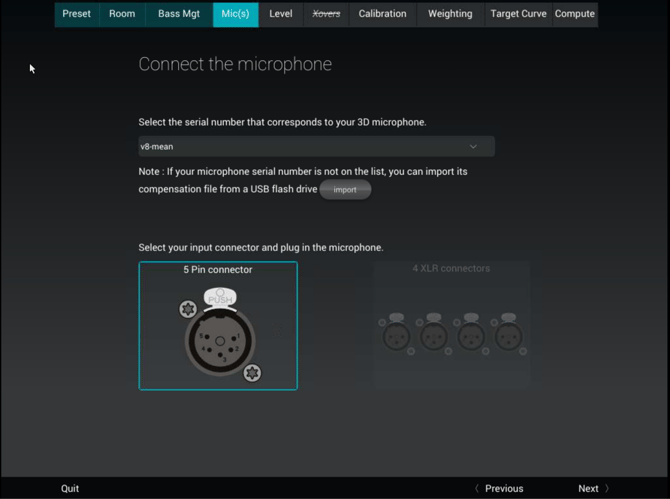
If you are using a v9 microphone (Altitude16 / Altitude32), the wizard will guide you through:
- Identifying the microphone
Check the serial number printed on the microphone body. - Uploading the correct compensation file manually
The file may come from a USB key, an email sent by support, or your my.trinnov.audio dealer account. - Selecting the right input when applicable
- Confirming the match
The serial number displayed by the processor must be identical to the microphone’s label. - Powering the microphone only when instructed
v9 microphones are not powered automatically by the processor.
The wizard will indicate when to switch it on.
Warning: Using a compensation file that does not match the microphone’s serial number will produce incorrect measurements and poor optimization results.
v10 Microphones - Automatic Detection & Compensation Transfer
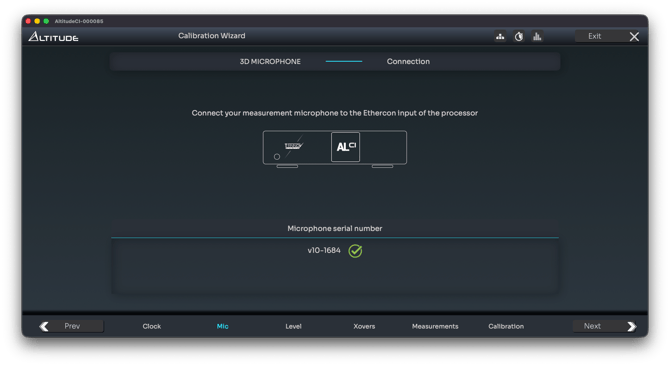
For v10 microphones used with AltitudeCI or NOVA:
- Connect the Ethercon microphone cable
- NOVA: front panel
- AltitudeCI: rear panel
- The processor will automatically:
- Detect and power the microphone
- Retrieve the compensation data stored inside the microphone
- Confirm success with a green checkmark
- You must still verify that the displayed serial number matches the physical microphone.
Note: no manual upload is required.
Best Practices
- Always confirm the serial number displayed by the wizard.
- Do not continue calibration until the microphone is fully recognized and validated.
- Never mix compensation files between microphones.
- For v9 microphones:
- Upload the file before calibration
- Power the microphone only at the wizard’s prompt
- For v10 microphones:
- Let the processor handle detection and file transfer automatically
- Let the processor handle detection and file transfer automatically
Next Step: Reference Position & Microphone Placement
After the microphone is confirmed and the compensation profile is loaded, the wizard will guide you to the next step: reference listening position and we also recommend you to read place the microphone.