![Logo_Trinnov_Black_CMJN.png]](https://kb.trinnov.com/hs-fs/hubfs/ISE%202024/Logo_Trinnov_Black_CMJN.png?height=50&name=Logo_Trinnov_Black_CMJN.png)
Summary:
- What is WaveForming measurement mapping?
- Prerequisites and assumptions
- Understanding the user interface
- Step 1: Define your seating layout
- Step 2: Enter your room dimensions
- Compromises for large or complex rooms
- Next step: WaveForming measurement
What is WaveForming Measurement Mapping?
WaveForming measurement mapping is a critical step in the Trinnov calibration wizard. It defines where measurements will be taken in your room, directly impacting the performance of the system. Poor measurement mapping will result in suboptimal bass performance, regardless of the quality of your subwoofers or their placement.
Note: This step is only visible if WaveForming was activated during the configuration startup. It follows the subwoofer role assignment.
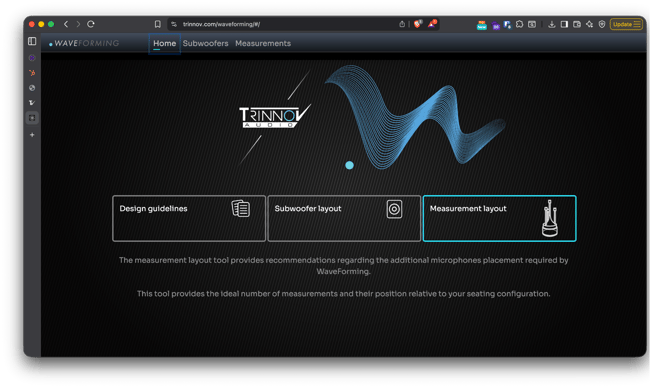
Tip: the measurement mapping tool is also available online along with a subwoofer placement tool and placement guidelines.
For more information about WaveForming technology and subwoofer placement guidelines, visit the WaveForming webpage.
Prerequisites and Assumptions
- WaveForming has been activated during the configuration startup.
- Subwoofer role assignment has been completed.
- You are familiar with the basic principles of WaveForming and subwoofer placement.
Understanding the User Interface
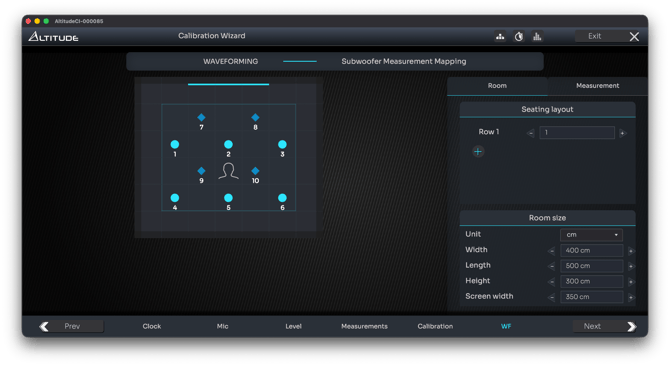
The WaveForming measurement mapping interface is divided into two main sections:
Left Side: Room Top View
- Room Representation: A top-down view of your room, with the screen (front of the room) represented by a blue-cyan line at the top.
- Grid Layout: A grid with square cells representing relative positions of seats, measurements, and exclusion zones.
- Seats: Represented by silhouettes.
- Measurements: Represented by circles or diamonds.
- Exclusion Zone: A thin blue line marks the boundary between the seating area and the measurement exclusion zone. Do not place measurements outside this line.
- Microphone Placement Rules: Each measurement position should be spaced no more than 1 meter apart.
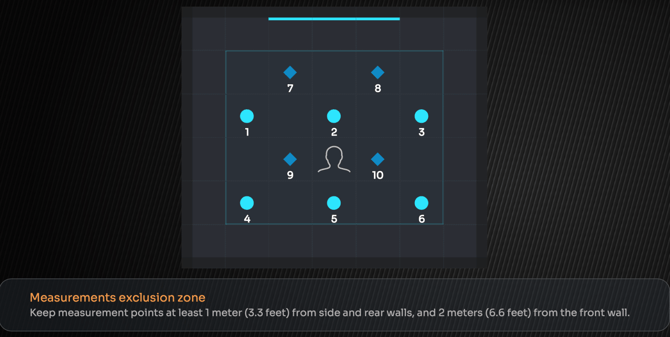
Tip: Hover your mouse over the map to view details about each zone.
Right Side: Settings Frame
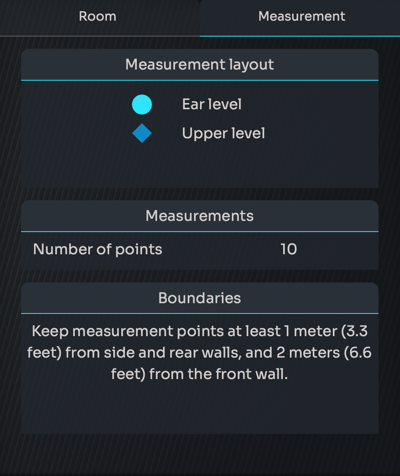
- Room Tab: Define your seating layout and room dimensions.
- Measurement Tab: Displays information about the measurements
Step 1: Define Your Seating Layout
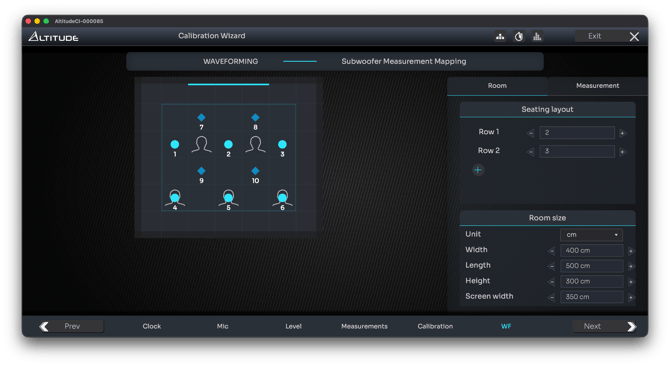
- Add Rows: Use the
 button to add rows of seats.
 - Adjust Seats per Row: Use the

 buttons to set the number of seats for each row.
- To remove a row, reduce the number of seats to 0.
- Real-Time Update: The recommended measurement map updates in real time as you adjust the seating layout.
Step 2: Enter Your Room Dimensions
- Units: Select cm or inches from the dropdown menu.
- Dimensions: Enter the width, length, height, and screen width of your room.
- Length is particularly important, as it is used by the WaveForming algorithm.
- These dimensions adjust the 3D model of your room in the interface and ensure accurate measurement mapping.
Compromises for Large or Complex Rooms
- Performance vs. Convenience: More measurements and subwoofers improve performance but increase preset size and computation time.
- Advanced Users: For large rooms with multiple rows/seats, consider excluding far-left/right seats or entire rows to streamline the process.
- General Recommendation: Replicate your room as closely as possible, but balance this with practicality for measurement and computation.
Next Step: WaveForming Measurement
Once your seating layout and room dimensions are defined, proceed to the final step: WaveForming calibration.
Note: The quality of your WaveForming performance depends on the accuracy of this mapping. Take your time to ensure it reflects your actual room layout and seating positions.