![Logo_Trinnov_Black_CMJN.png]](https://kb.trinnov.com/hs-fs/hubfs/ISE%202024/Logo_Trinnov_Black_CMJN.png?height=50&name=Logo_Trinnov_Black_CMJN.png)
Summary:
- Overview
- Accessing the User Preferences Page
- Language
- Front Panel LED Brightness
- Processor Name
- Textured Background
Overview
The User Preferences page lets you adjust general interface and display settings.
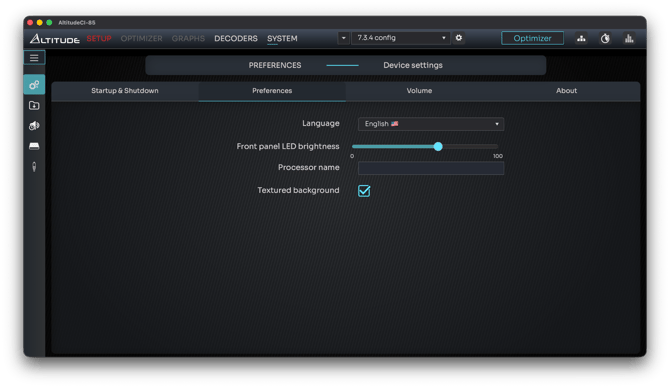
These options include:
- Interface language
- Front panel LED brightness
- Processor name
- Textured background (on/off)
Accessing the User Preferences Page
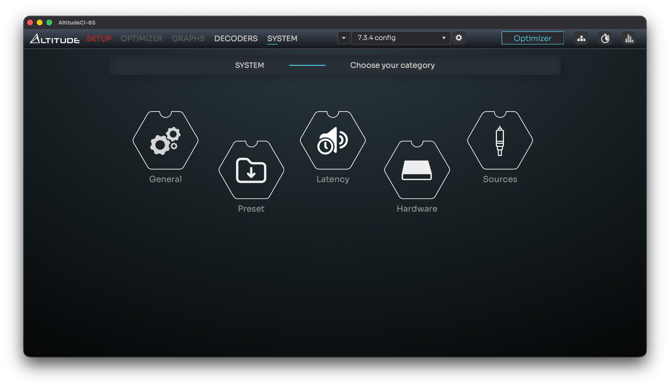
You can access User Preferences through the Trinnov App or via the Web User Interface.
- Open the Trinnov App or connect to the Web UI in your browser.
- Click System in the top navigation bar.
- Select the General section.
- Open the Preferences tab.
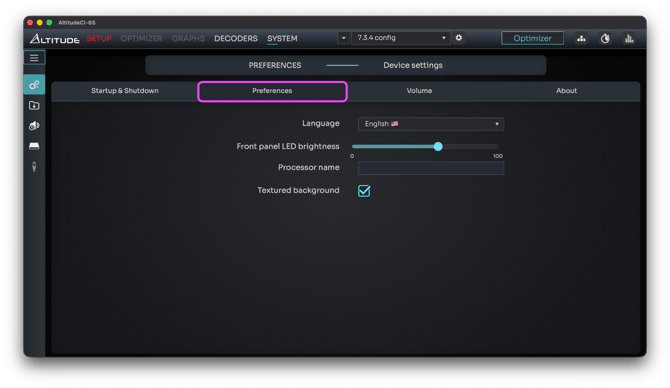
This displays all available User Preferences options.
Language
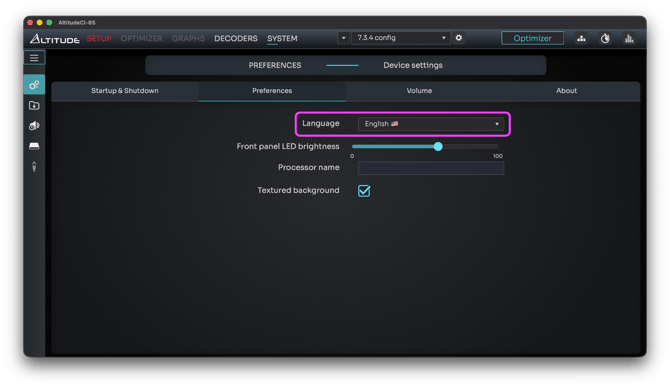 The Trinnov user interface supports two languages: English and French.
Use the drop-down menu to select your preferred language. The interface will automatically update within a few seconds after your selection.
Note: you can also choose your language on the first screen of the setup wizard shown at initial startup.
Front panel LED brightness
The Front Panel LED Brightness control is a slider used to adjust the brightness level of the unit’s front panel.
The slider ranges from 0 to 100, allowing precise control over brightness to suit your environment.

Processor name
The Processor Name field is a text box where you can assign a name to your Trinnov unit.
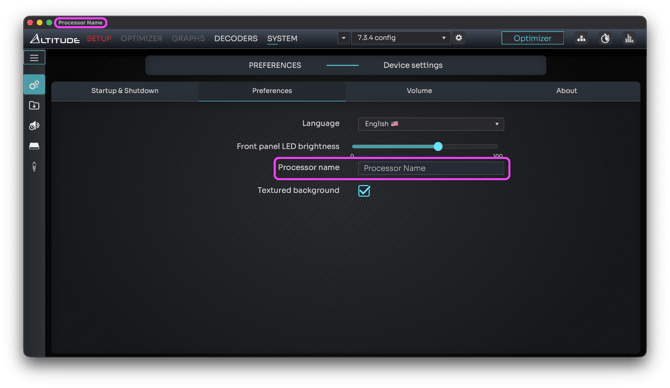
Use the Processor Name field to give your unit a custom name. The name you enter is shown in the Trinnov App and becomes the title displayed in the interface window.
This feature is especially useful when multiple units are installed in different locations.
Naming each unit makes it easier to identify them in the system interface.
Tip: use descriptive names such as Cinema AltitudeCI or Living Room Processor.
Textured background
The Trinnov user interface has two options: textured background or black screen.
The textured background is by default, and faint slanting diagonal lines which give the UI a nice, polished feel.
If you prefer to remove the textured background, simply uncheck the checkbox.