![Logo_Trinnov_Black_CMJN.png]](https://kb.trinnov.com/hs-fs/hubfs/ISE%202024/Logo_Trinnov_Black_CMJN.png?height=50&name=Logo_Trinnov_Black_CMJN.png)
Summary:
- Overview of the Routing Step
- What Happens Before Routing
- Routing on Altitude Processors
- Routing on NOVA (Monitor Controller On)
- Routing on NOVA (Monitor Controller Off)
- Testing and Validating Routing
- Saving Your Configuration
Overview of the Routing Step
Routing defines how audio flows through your system. It ensures that each speaker, subwoofer, and input is connected to the correct physical output of the processor before calibration begins.
Note: although all Trinnov processors share the same objective, the routing workflow differs depending on the product and on whether NOVA is used as a monitor controller.
What Happens Before Routing
Before reaching this step:
- Speakers and subwoofers are declared (location, type, number).
- On Altitude: no physical output assignment happens yet.
- On NOVA:
- Monitor Controller On: physical outputs are already assigned to speakers during the Speakers step.
- Monitor Controller Off: speakers are not used, so output routing is handled entirely here.
This distinction is key to understanding how Routing behaves across products.
Routing on Altitude Processors
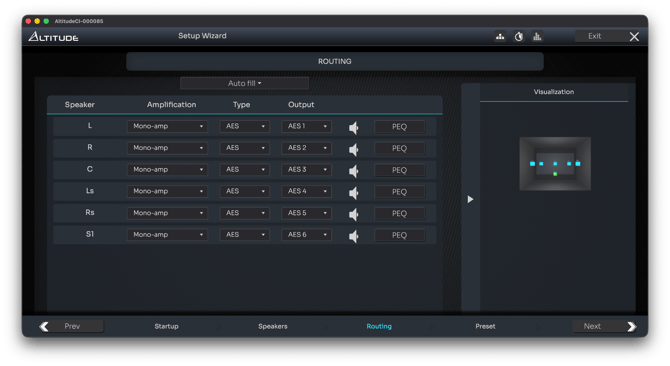
Routing page on the AltitudeCI
Altitude processors perform all speaker-to-output assignment here, during the Routing step. Outputs are displayed as numbered channels, and the processor uses product-specific rules to determine which physical connectors those channels are sent to.
Routing simply consists of selecting the physical output used for each speaker, using the output dropdown menu on its corresponding line.
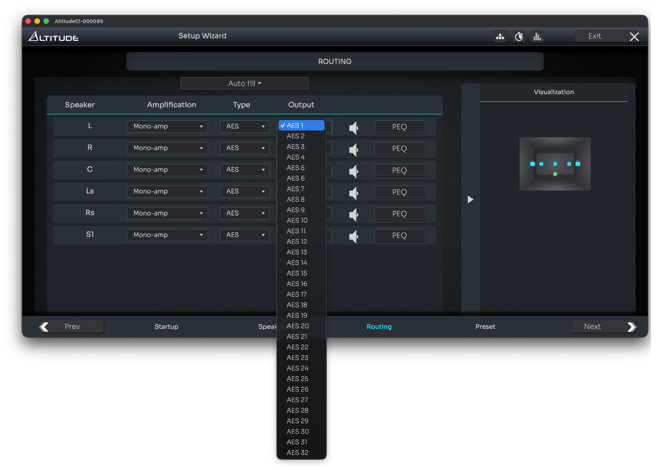
Caution: routing is therefore heavily dependent on the hardware configuration of each Altitude model.
Altitude16 Routing Logic
On the Altitude16, outputs are displayed as channels 1 to 16, with optional extension to 20 depending on the +4 option.
Physical Output Mapping
- Outputs 1–16 → Analog XLR outputs (always active)
- Outputs 17–20 → S/PDIF outputs (only available when the “+4” option is enabled)
If the +4 option is not enabled:
- Outputs 1–2 are mirrored to:
- Analog outputs 1–2
- S/PDIF Coaxial outputs
- S/PDIF Toslink outputs
In this mode, no independent digital outputs beyond the analog XLR connectors are available, and no additional channels above 16 can be routed.
Altitude32 Routing Logic
On the Altitude32, outputs appear as channels 1 to 32, or up to 48 when the Altitude48 Extension firmware is installed.
Warning: which physical connectors are active depends entirely on the Output Connector Configuration.
Output Connector Configurations
- Analog + AES 1–8 + 17–24: both the analog outputs and the AES/EBU digital outputs are active. On the multichannel AES output, channels 1–8 and 17–24 are available.
- AES 1–16: only the AES/EBU digital outputs 1–16 are active. Analog outputs are disabled in this mode.
- Analog 1–8 + AES 9–12: (only available on Altitude32-88). Enables the +4 option on the 32-88 hardware configuration. Analog outputs 1–8 remain active, while AES channels 9–12 are provided digitally.
- Analog 1–16 + AES 17–20 (only available on Altitude32-816). Enables the +4 option on the 32-816 model. Analog outputs 1–16 remain active, with AES channels 17–20 available digitally.
- Analog 1–24 + AES 25–28: (only available on Altitude32-1624). Enables the +4 option on the 32-1624 model. Analog outputs 1–24 are active, with AES channels 25–28 added digitally.
- Analog 1–32 + AES 33–36 (only available on Altitude32-2432). Enables the +4 option on the 32-2432 model. Analog outputs 1–32 are active, and AES channels 33–36 become available.
- 48ch AES + Analog (requires Altitude48 Extension license). This mode enables 48 simultaneous output channels via AES/EBU while keeping analog outputs active. A dedicated Altitude48 Extension license is required; it is not enabled by default.
Note: older firmware versions may show legacy connector configurations that are deprecated and should not be used.
AltitudeCI Routing Logic
The AltitudeCI is built on Trinnov’s new-generation hardware platform, which offers fully independent outputs and a simplified routing model compared to Altitude16 and Altitude32.
Unlike legacy platforms, there are no mirrored outputs, no hardware output modes, and no restrictions between analog, AES/EBU, and AoIP outputs.
Routing on AltitudeCI is therefore much more flexible: any speaker or subwoofer can be assigned to any output, regardless of physical connector type.
Output Architecture
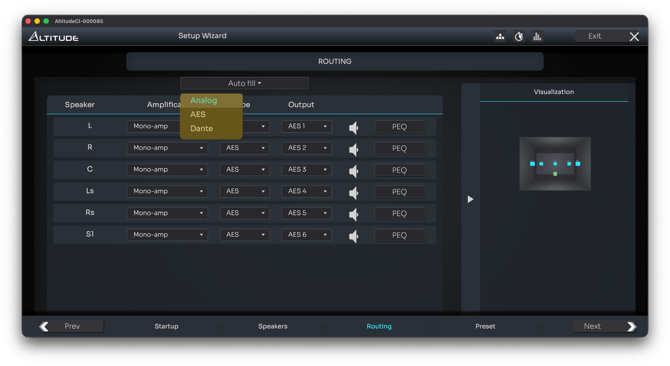
The AltitudeCI includes three parallel output domains:
- Analog outputs (8 channels)
- AES/EBU balanced digital outputs (up to 32 channels)
- Dante/AES67 output (Up to 32 channels)
All outputs are available simultaneously.
Tip: use the Autofill option to populate automatically all declared speakers in the required connector type from 1 to n.
Active Speaker Configuration
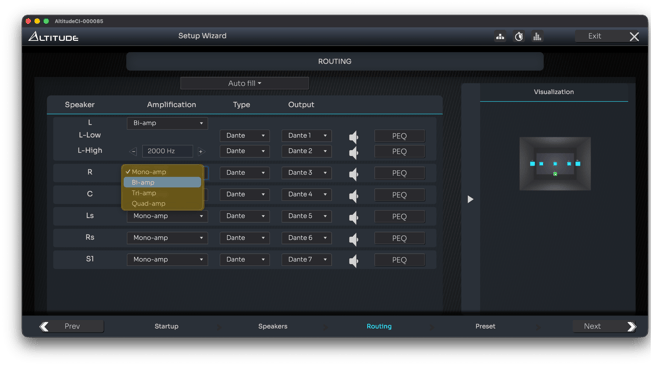
If a speaker is declared as:
- Full-range (Mono-amp),
- 2-way (Bi-amp),
- 3-way (Tri-amp), or
- 4-way (Quad-amp),
…the Routing step automatically creates the required number of output channels.
You can then:
- Assign each driver to a physical output
- Set the active crossover frequency
- Finalize the filter topology before calibration
Pre-Calibration EQ
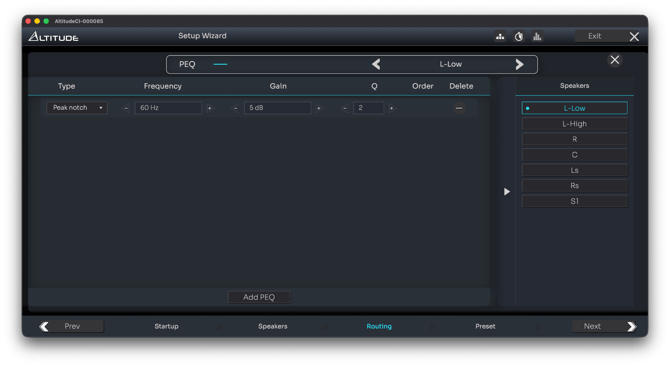
Pre-calibration EQ can be added to any output.
This is typically used for:
- Manufacturer EQ curves
- Gentle shaping prior to Optimizer calibration
Pink Noise Routing Test
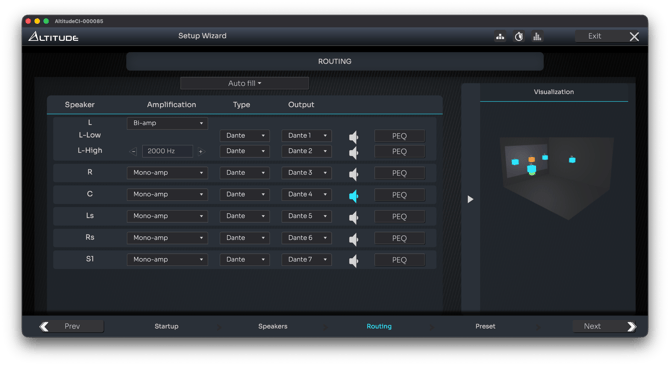
A built-in test signal lets you confirm that each channel plays from the correct speaker after routing assignments.
To play pink noise through a speaker output, simply click on the speaker  icon, which turns blue when playing.
Tip: Speakers currently playing pink noise are highlighted in orange in the visualization window on the right side of the menu.
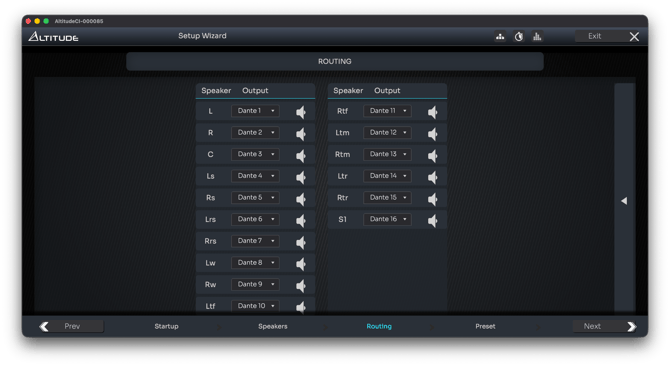
Compact view of the routing page
Tip: for high-channel count systems, you can also close the visualization panel to see all outputs in a single page. The number of available options is then reduced to Speaker name, Output dropdown and pink noise.
Routing on NOVA (Monitor Controller On)
Basic Mode Editing
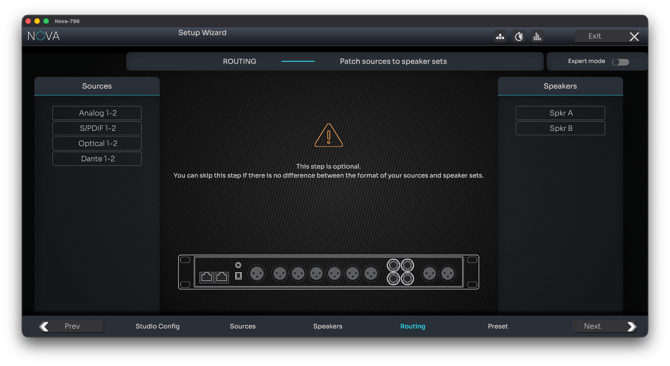
When NOVA is used as a monitor controller, routing is largely automatic.
The output assignment is already completed. Speaker sets and outputs were mapped during the Speakers step.
Therefore, in Routing:
- The screen show the following indication: “This step is optional”
- No additional speaker-to-output assignment is required
- The user simply reviews or fine-tunes the matrix in Expert Mode
Expert Mode Editing
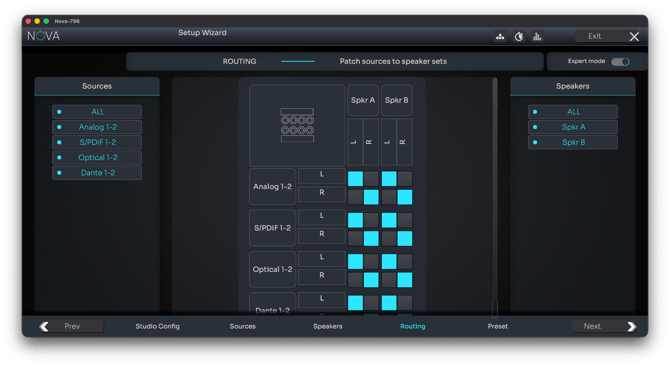
The routing matrix shows:
- Inputs as rows
- Speakers as columns (based on speaker sets)
You may adjust:
- Source-to-speakers routing
- Fold-downs or alternate monitor paths
This mode provides flexibility while reducing configuration time for monitoring setups.
Tip: you can filter sources and speakers in or out of the matrix using the filter menus on the right and left sides.
Routing on NOVA (Monitor Controller Off)
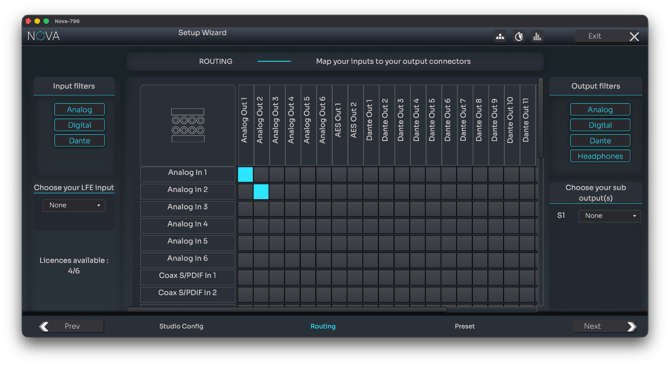
When NOVA is not used as a monitor controller, routing becomes the central configuration action.
No Speaker Sets, No Monitor Profiles
In this mode, NOVA works as a flexible signal processor.
There are:
- No declared speakers
- No speaker sets
- No automatic output assignment
Direct Input-to-Output Routing
You simply route:
- Any input → any output
- With no constraints from speaker templates or monitoring rules
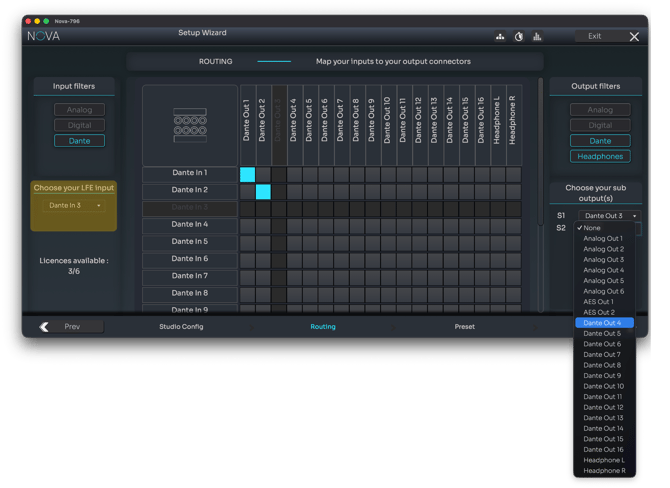
Special options include:
- Dedicated LFE Input Selector (left)
- Multiple Subwoofer Outputs thanks to dropdowns (right)
This is ideal for:
- Studios and live environments using external monitoring controllers
- Custom routing schemes
Tip: you can filter inputs and outputs in or out of the matrix using the filter menus on the right and left sides.
Testing and Validating Routing
Regardless of product or mode, verify that:
- All required outputs receive signal
- Active crossover drivers (Altitude) are correctly mapped
- LFE routing is correct (especially on NOVA MC Off)
- Subwoofers are routed as intended
- Pink noise testing confirms correct speaker playback
Saving Your Configuration
Routing is the final configuration step.
You must now save your work into a preset to proceed to calibration.