![Logo_Trinnov_Black_CMJN.png]](https://kb.trinnov.com/hs-fs/hubfs/ISE%202024/Logo_Trinnov_Black_CMJN.png?height=50&name=Logo_Trinnov_Black_CMJN.png)
Summary
Key Differences Between Altitude and NOVA
|
Feature |
Altitude |
NOVA |
|
Source Concept |
A source is a physical input connector (e.g., HDMI, digital, analog). Channels are auto-detected and mapped to speaker outputs. |
A source is a logical input entity that can be configured independently of physical connectors. Supports custom types, formats, and quantities. |
|
Initial Setup |
Default sources available on the home page at first startup. |
Sources configured during the configuration wizard. |
|
Configuration Location |
System / Sources. |
Setup / Configuration / Sources. |
|
Basic Mode |
Renaming and showing/hiding sources. |
Basic declaration (type and format) |
|
Expert Mode |
Additional menus and functions (see Shortcuts). |
Advanced declaration (routing, level offset…) |
|
System Menu Access |
Yes. |
No. |
Altitude Source Configuration
Understanding Altitude Sources
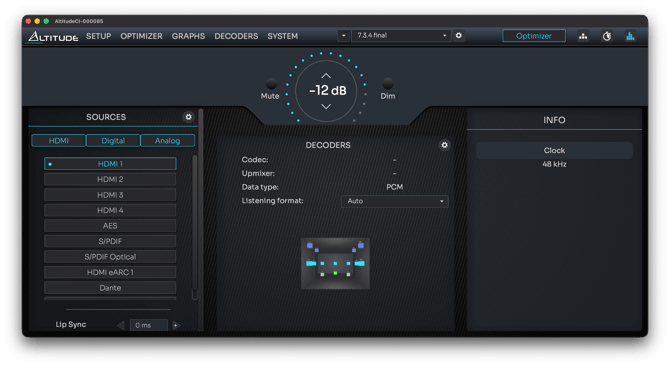
On Altitude processors, a source corresponds to an input connector, usually handling bitstream signals. Channels are automatically detected and mapped to the correct speaker outputs.
Note: at first startup, a set of sources is already available on the home page, requiring no initial declaration or configuration.
Accessing the Source Configuration Page
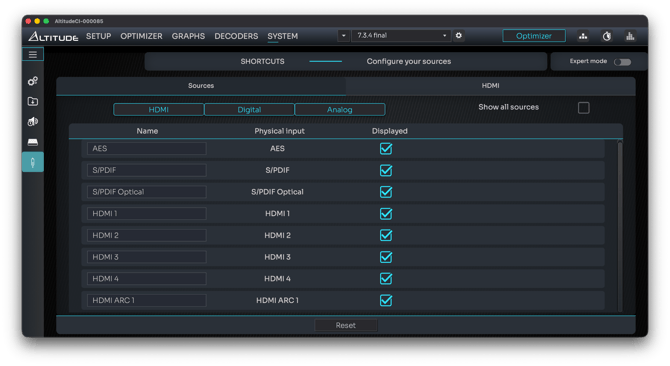
To configure sources:
- Go to System in the top navigation bar.
- Select Sources.
Editing Sources on Altitude
Source Table: Columns and Filters
The Source Configuration page displays a table of all sources shown on the home page. You can filter sources by type (HDMI / Digital / Analog) using the buttons at the top of the table.
Show all sources: Check this box to display all available sources on the processor, regardless of their visibility on the home page.
Source Table Columns
|
Column |
Description |
|
Name |
Click to rename the source. |
|
Physical Input |
Indicates the physical input connector (helpful if the source name differs from the default). |
|
Displayed |
Checkbox to show or hide the source on the home page. |
Basic Mode
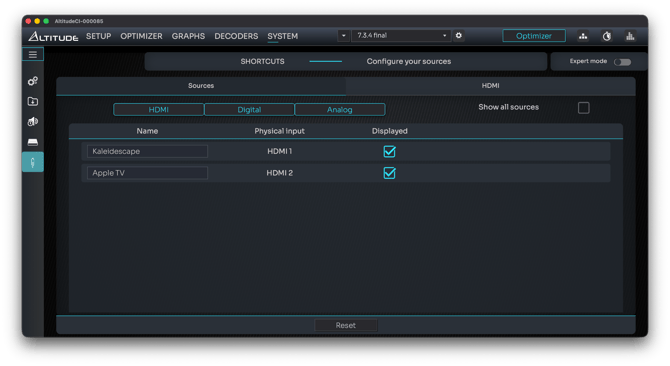
In Basic mode, you can:
- Rename sources.
- Show or hide sources on the home page.
Expert Mode
In Expert mode, additional menus and functions are available. For details, refer to the Shortcuts article.
NOVA Source Configuration
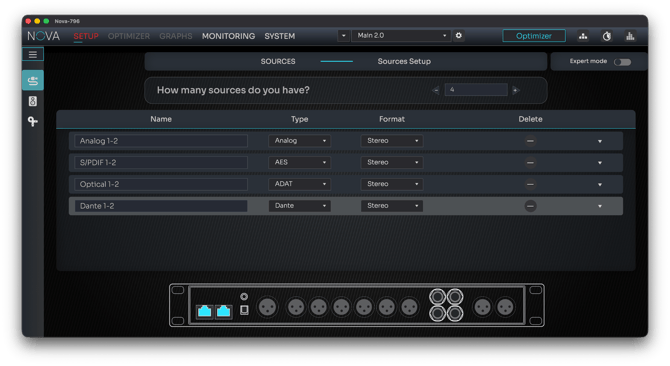
Source Declaration via Configuration Wizard
On NOVA processors, sources are not limited to input connectors.
They can vary in connector type, format, and quantity.
Sources are configured during the configuration wizard and can be edited afterward.
Editing Sources Post-Configuration
- Navigate to Setup / Configuration / Sources.
- The interface mirrors the source declaration process from the configuration wizard.
Refer to Source declaration to see the detailed article.
Note: There is an option available to mute DACs with relays : It may reduce or suppress issues if you are experiencing audio glitches when switching content.