![Logo_Trinnov_Black_CMJN.png]](https://kb.trinnov.com/hs-fs/hubfs/ISE%202024/Logo_Trinnov_Black_CMJN.png?height=50&name=Logo_Trinnov_Black_CMJN.png)
(Visible only if NOVA is configured as a Monitor Controller)
Summary
- How to Access Source Declaration
- General Principles
- Basic Mode
- Expert Mode
- Supported Source Types & Formats
- Next Step: Speaker Declaration
If you are configuring sources on an Altitude, please refer to the dedicated Source Configuration article.
How to Access Source Declaration
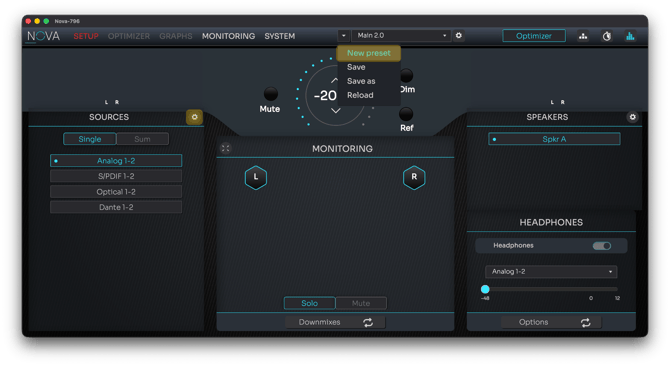
Access Source configuration from the home page
You can declare or edit sources at any time from several locations:
- During the Configuration Wizard when creating a new preset
- From Setup > Configuration in an existing preset
- Directly from the Home Page using the gearwheel icon
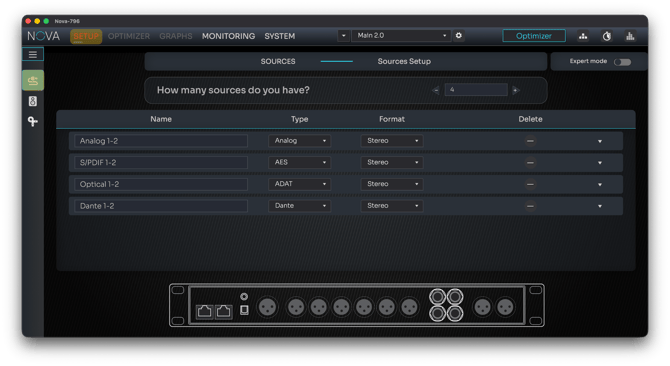
Access Source configuration from the Setup Menu (Setup/Configuration/Sources)
Caution: the Source declaration page is only available if NOVA was set as a Monitor Controller during initial configuration. If not, restart the setup process. See Configuration Startup for details.
Note: both Basic and Expert modes are available on this page. For a detailed comparison, refer to the dedicated Basic vs Expert Mode article.
Once declared, sources appear in the left-side pane on the Home page. They can be selected individually or summed.
General Principles
- Source changes take effect immediately and do not require recalibration.
- NOVA automatically routes each source to the relevant physical inputs based on its type and channel format.
- Example: The first Analog Stereo source is routed to Analog In 1–2; a second Analog LCR source is routed to Analog In 3–5.
Tip: each source is represented as a line in the list. Hovering over a source highlights its associated rear-panel connector in the diagram.
Basic Mode
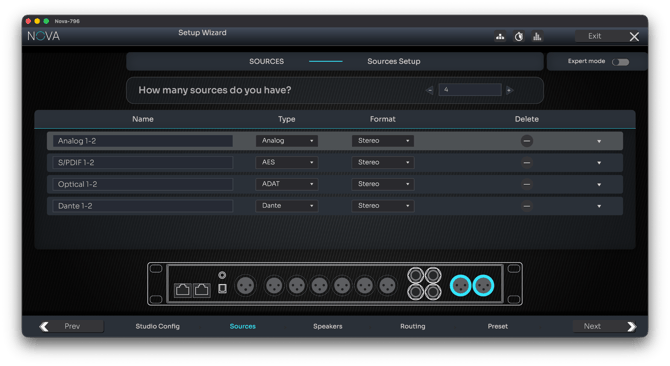
Basic mode provides a simple, fast way to declare sources.
- At the top of the page, NOVA asks: “How many sources do you have?”
- The number you enter determines how many source lines are displayed.
- As you hover over a source line, the corresponding input connector on the rear panel is highlighted.
- By default, NOVA declares four stereo sources, one for each connector type.
- You may increase or reduce the number of sources at any time.
- You can delete a specific source using the Delete
 icon.
icon. - Any source can be renamed (e.g., Pro Tools, Logic, Streaming) for easier selection on the Home page.
Tip: expanding a source line using the arrow reveals the input routing assigned by default.
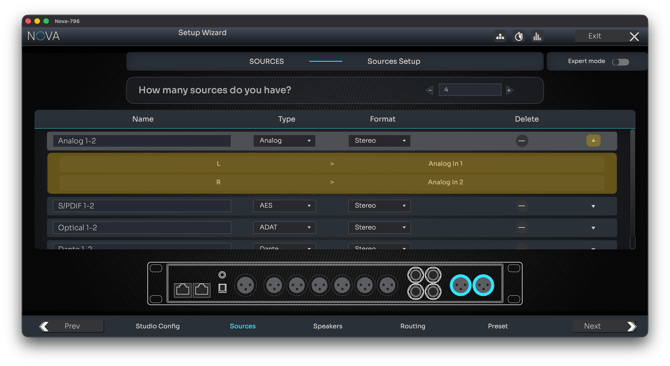
Expert Mode
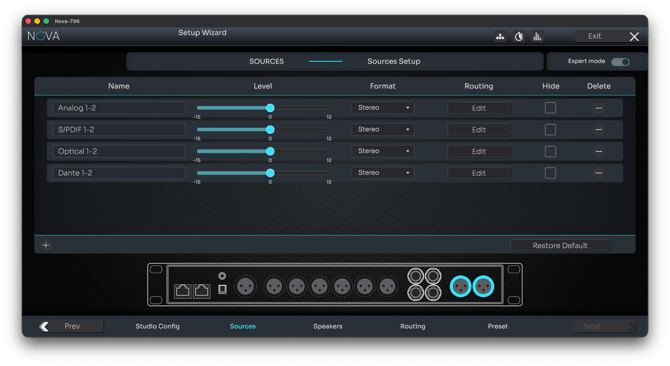
Toggle Expert Mode using the button in the top-right corner.
Expert mode provides full control over source behavior and routing:
- A
 button adds new sources without using the “How many sources” question.
 - Each source includes an Input Level slider, allowing precise alignment between devices with different output sensitivities and preventing sudden level jumps.

- A Hide checkbox lets you remove a source from the Home page without deleting it.
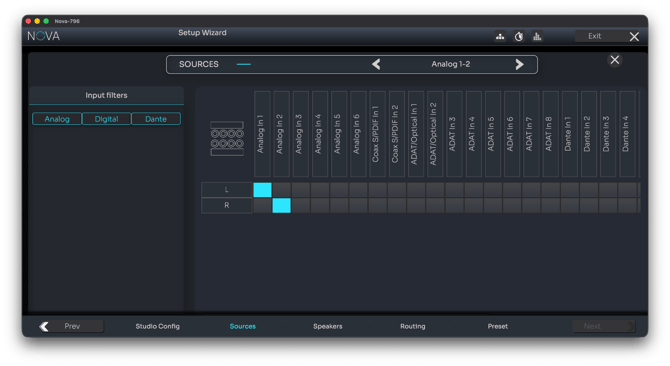
- A Routing Edit button opens a routing matrix, letting you assign any source channel to any available physical input.
- A Restore to Default button recalls the factory source configuration for NOVA.
Supported Source Types & Formats
Connection Types
(See NOVA Hardware Overview for connector locations)
- Analog
- ADAT
- Dante (see the Audio over IP – Dante section for configuration guidance)
Available Formats
Any format up to 12 channels depending on the configuration selected including:
- Mono
- Stereo
- LCR
- LCRS
- LCRLFE
- LRLsRs
- 5.1
- 6.0
- 7.1
- 8.0
- 5.1.2
- 5.1.4
- 7.1.2
- 7.1.4
- 9.1.2
- 11.1 Auro
- 12.0
Formats in bold are only available in Dante using the Immersive configuration.
Next Step: Speaker Declaration
Once your sources are declared, the Wizard proceeds to Speaker Declaration, where you describe the physical layout of your system.