![Logo_Trinnov_Black_CMJN.png]](https://kb.trinnov.com/hs-fs/hubfs/ISE%202024/Logo_Trinnov_Black_CMJN.png?height=50&name=Logo_Trinnov_Black_CMJN.png)
Summary
Quick Overview
What is a Target Curve?
A Target Curve is one of the key and most efficient tools for achieving great results quickly during the fine-tuning process. It defines the tonal character of your system after calibration, ensuring both technical accuracy and a subjectively pleasing sound.
Instead of forcing a flat response, Trinnov aligns your system to a chosen sound signature, allowing you to tailor the sound to your room, speakers, and content.
Why It Matters:
- Achieve consistent tonal balance across all channels.
- Quickly optimize your system for different listening environments and preferences.
Important Note: Target Curves and Speaker/Subwoofer Outputs
Target curves are applied to speaker and subwoofer outputs, not input channels.
This means that the reconstructed acoustic response of an input channel (e.g., Center) is the combination of:
- The speaker(s) and subwoofer(s) used for bass management.
- The bass management crossover filter.
- The post-Optimizer responses of the speaker/subwoofers, including the effects of the target curve.
- Any manual adjustments (EQ, gain…)
Key Differences: Altitude vs. NOVA
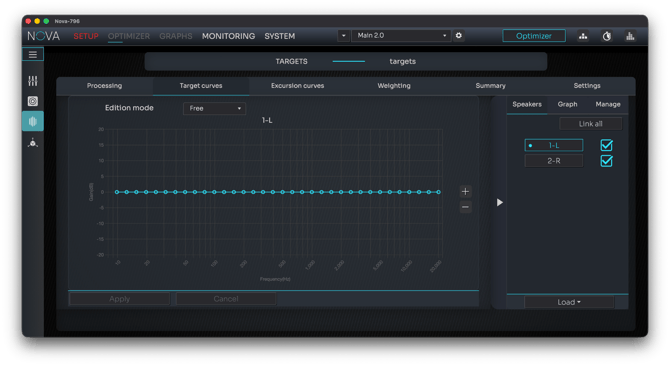
Target Curve Editor on NOVA
Target Curve Availability
|
Processor |
Preconfigured Curves |
Mode de base (charger une configuration préconfigurée) |
Mode expert (édition manuelle) |
Mode par défaut |
|
Altitude |
5 (Plat, Musical, Léger, Modéré, Fort) |
Oui |
Oui (via l'éditeur de courbe cible) |
Mode de base (préconfiguré) |
|
Nova |
Aucun (Par défaut) |
Non |
Oui (via l'éditeur de courbe cible) |
Mode expert (édition manuelle) |
Five Preconfigured Target Curves (Altitude Only)
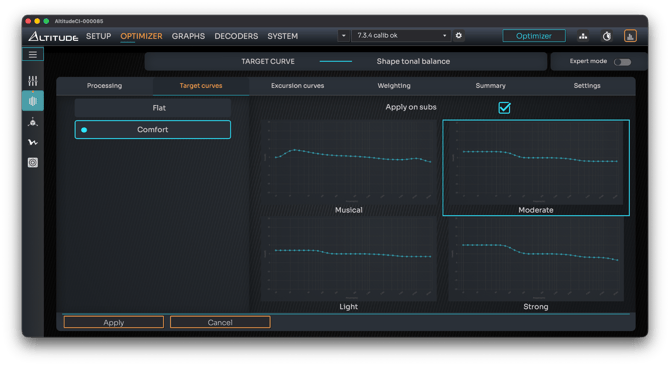
Moderate Target Curve on the Altitude (Basic mode)
Preconfigured Target Curves
|
Curve |
Bass Boost |
Treble Shaping |
Best For |
|
Flat |
None |
None |
Neutrality, critical listening |
|
Musical |
+3 dB @ 80 Hz |
Slight lift @ 10 kHz |
Music, live recordings |
|
Light |
+1.5 dB @ 80 Hz |
Gradual reduction |
Everyday listening, subtle warmth |
|
Moderate |
+3 dB @ 80 Hz |
Controlled shaping |
Movies, modern pop |
|
Strong |
+5 dB @ 80 Hz |
Gradual reduction |
Action movies, deep bass |
NOVA Users: Start with Flat and use the Target Curve Editor to create your own curve.
Detailed Steps
Choosing the Right Curve
- Start with Flat to hear your system’s natural response.
- Musical/Light for gentle enhancement.
- Moderate/Strong for pronounced bass impact.
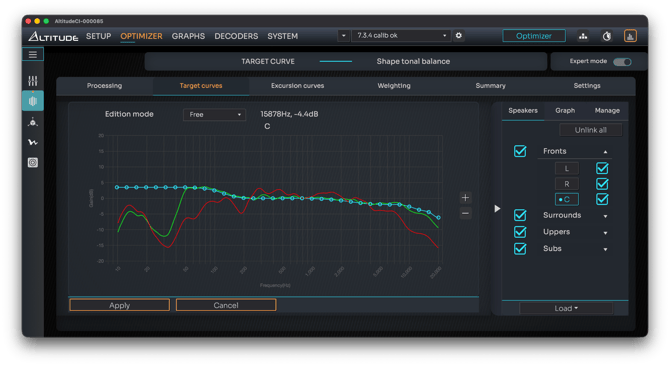
Manual edit on the Moderate curve in Expert Mode
Tip: once you have selected your starting point with one of the preconfigured target curve, you can switch to expert mode and use the Target Curve Editor to fine-tune any curve.
Gain Limits and Practical Considerations
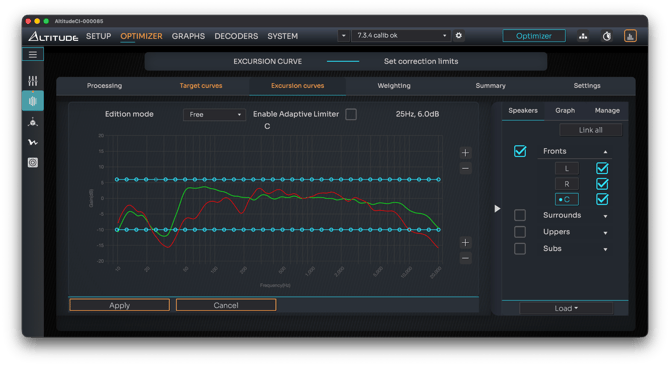
Default Excursion Curves showing boost and attenuation limits
- The Optimizer is set with a default maximum boost capacity of 6 dB to avoid distortion or damage. This means:
- Dips in the original acoustic response deeper than 6 dB cannot be fully compensated.
- Room modes or acoustic issues should not be addressed solely by boosting.
- The default maximum attenuation is 10 dB.
Both boost and attenuation limits can be adjusted in the Excursion Curves tool.
Step-by-Step: Adding or Editing a Target Curve
For Altitude Users
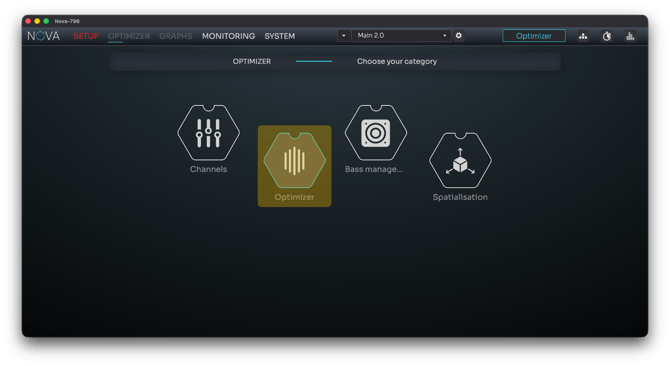
- Navigate: OPTIMIZER → Optimizer → Target Curves.
- Select: Choose Flat or Comfort (reveals Musical, Light, Moderate, Strong).
- Apply: Click Apply, then Save Preset.
For NOVA Users
- Navigate: OPTIMIZER → Optimizer → Target Curves.
- Edit: Use the Target Curve Editor to create or modify your curve.
- Apply: Click Apply, then Save Preset.
Processing Time and Final Check
- Wait: The system recalculates filters, do not interrupt.
- Listen: Compare presets to confirm the best fit for your room and content.
Next Steps
- Explore the Target Curve Editor for advanced customization.
- Refer to Target Curves and Excursion Curves for deeper guidance.