![Logo_Trinnov_Black_CMJN.png]](https://kb.trinnov.com/hs-fs/hubfs/ISE%202024/Logo_Trinnov_Black_CMJN.png?height=50&name=Logo_Trinnov_Black_CMJN.png)
Summary
Saving Logic
It is crucial to understand when the processor saves your data:
- Calibration Wizard: The wizard automatically saves a preset only after all measurements have been captured.
- Manual Adjustments: Any changes made after the measurement phase, such as modifying Bass Management settings, Target Curves, or PEQs, are not saved automatically.
Warning: If you switch to another preset or power off the unit without saving, any unsaved changes will be permanently lost.
To avoid unintended data loss, we recommend that you save early and save often while working on a preset
Save vs. Save As
When saving a preset, you have two options in the dropdown menu:
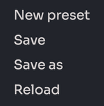
- Save: Updates the currently selected preset with any new changes.
- Save As: Creates a duplicate of the current preset under a new name.
Note: Save As is especially useful during the fine-tuning process. It allows you to save different iterations (versions) to compare settings or preserve an earlier configuration that you know works well.
How to Save
To save your adjustments:
- Make your desired changes to the configuration.
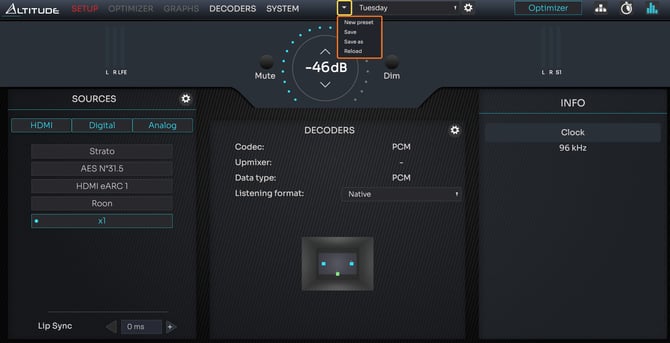
- Open the Preset Dropdown menu (the small arrow) located directly to the left of the preset name at the top of the screen.
- Select Save or Save as.
Naming Presets
When using Save As, you will be asked to name the new preset. Use clear naming conventions:
- During Calibration: Use names that reflect iteration details (e.g., Calib_V1_Flat, Calib_V2_HouseCurve) to help track your progress.
- For the End User: Once calibration is complete, rename the final presets in a way that is intuitive for the client (e.g., Movies, Music, TV, Night Mode).

To learn how to rename, lock, or set a default startup preset, refer to the article Managing Presets.