![Logo_Trinnov_Black_CMJN.png]](https://kb.trinnov.com/hs-fs/hubfs/ISE%202024/Logo_Trinnov_Black_CMJN.png?height=50&name=Logo_Trinnov_Black_CMJN.png)
Summary:
- What happens at first startup
- Why there is no built-in preset anymore
- What must be done before audio can play
- Front panel display behavior during initial setup
- Network menu always accessible
What Happens at First Startup
During initial startup, the processor goes directly into the Configuration Wizard:
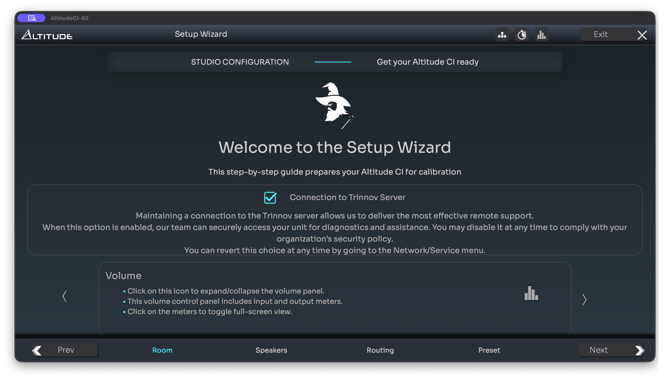
This replaces the previous behavior found in older software versions, where a default preset allowed basic audio output out of the box.
As a result:
- There is no “built-in preset”
- No preconfiguration or factory default routing is loaded
- The processor cannot be operated until the configuration Wizard is completed
This guarantees that every system starts from a valid and user-defined configuration.
Why There Is No Built-In Preset Anymore
From Altitude16/32 software version 5.0 onward, and across all new hardware platforms, the preset-based factory configuration was removed to ensure that:
- The speaker layout is declared correctly
- Sources are defined appropriately
- Routing is explicitly set
This architecture is shared by AltitudeCI, NOVA, and the updated Altitude16/32 platform.
What Must Be Done Before Audio Can Play
Configuration Wizard
Before the processor can output any sound, you must complete the Configuration Wizard:
- Declare your speaker layout
- Define routing to physical outputs
- Add or confirm your sources, depending on the processor model
- Save your base configuration as a preset
Running an acoustic calibration with the Optimizer is optional at this stage.
Source Declaration – Differences Between Platforms
Altitude Platform
- The Altitude platform automatically exposes some physical inputs as available sources.
- Source declaration is not part of the Wizard.
- One input = one source (HDMI, AES/EBU, S/PDIF, etc.).
- Bitstream formats are decoded and channel layouts are handled automatically.
In most home-cinema workflows, source configuration requires minimal manual setup.
NOVA
- NOVA follows a studio-oriented workflow: sources must be declared manually.
- For each source, you must specify:
- The input connector
- The audio format
- The input routing
- No assumptions are made about signal type or channel count.
This ensures correct operation in professional environments.
Front Panel Display Behavior During Initial Setup
Note: this section only applies to Trinnov processors equipped with a front panel display.
While the Configuration Wizard is active:
- The front-panel controls are intentionally inoperable
- The display indicates that a configuration is in progress
- Volume, input selection, mute, and other controls remain disabled
This prevents attempts to operate the unit before a valid system is defined.
Network Menu Always Accessible
Note: this section only applies to Trinnov processors equipped with a front panel display.
Even during initial configuration, the Network menu remains available from the front panel.
From there, you can:
- Check the IP address to access the processor through the Web User Interface if needed
- Verify Ethernet or Wi-Fi connectivity when applicable
- Change network settings (DHCP, manual IP…)
- Change the network mode when applicable (Switch, isolated…)
This ensures the system can be configured even if the Trinnov application is not immediately available or if the unit is being connected to a new network.