![Logo_Trinnov_Black_CMJN.png]](https://kb.trinnov.com/hs-fs/hubfs/ISE%202024/Logo_Trinnov_Black_CMJN.png?height=50&name=Logo_Trinnov_Black_CMJN.png)
Summary:
- Introduction
- Direct Ethernet connection
- Router-based DHCP setups
- Using the processor as a switch
- Mixed Ethernet + Wi-Fi connections
- Switch → Router topologies
Introduction
These topologies represent the simplest and most reliable ways to connect Trinnov processors in typical home or small-network environments.
They are suitable for basic control and detection and should be distinguished from AoIP-focused network architectures, which may require more advanced designs.
Direct Ethernet Connection (Processor ↔ Computer)
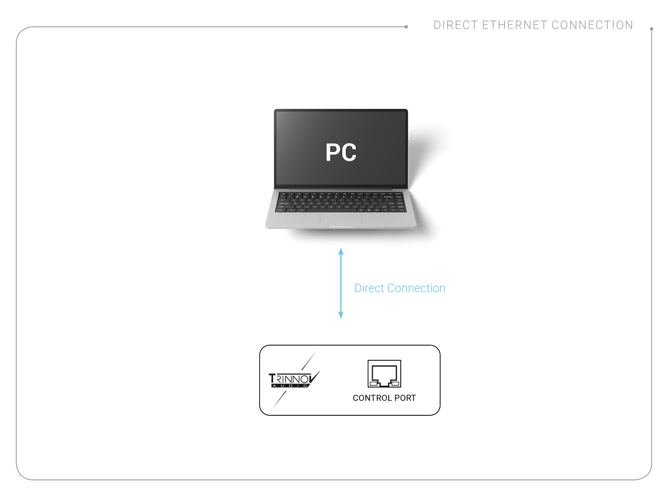
Use when:
- No router is available
- Troubleshooting
- Initial detection issues
Requirements:
- Ethernet port, or USB–Ethernet adapter
- DHCP recommended (automatic)
- Static IP possible if needed
Ethernet to Router (Standard DHCP Setup)
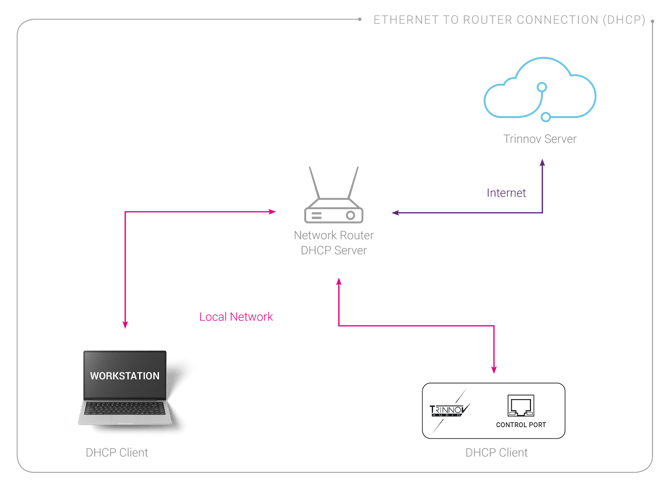
This is the easiest and most reliable option.
Steps:
- Connect processor to router
- Connect computer to same router (Ethernet or Wi-Fi)
- Ensure both are in DHCP mode
- Open the Trinnov App, the processor should appear automatically
Using the Processor as a Switch
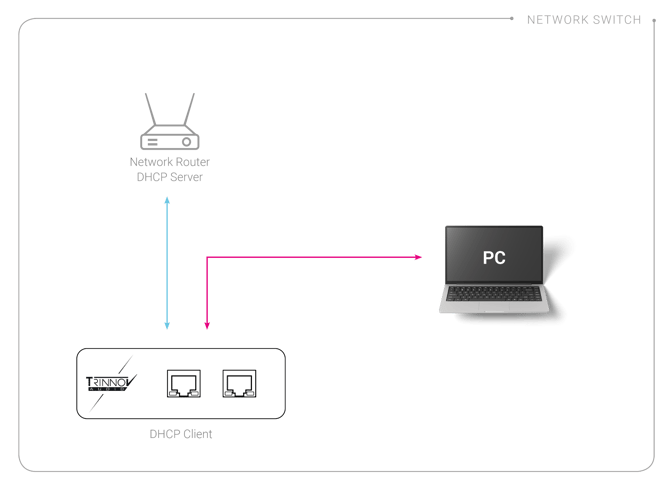
Applicable to:
- Applicable Trinnov Processor in Switched Mode
- Amplitude16 (always behaves as a switch)
When useful:
- Only one Ethernet wall port available
- Temporary setups
- Rack systems with limited switch ports
Caution: this mode must not be used if it risks creating a network loop.
Ethernet + Wi-Fi to Router
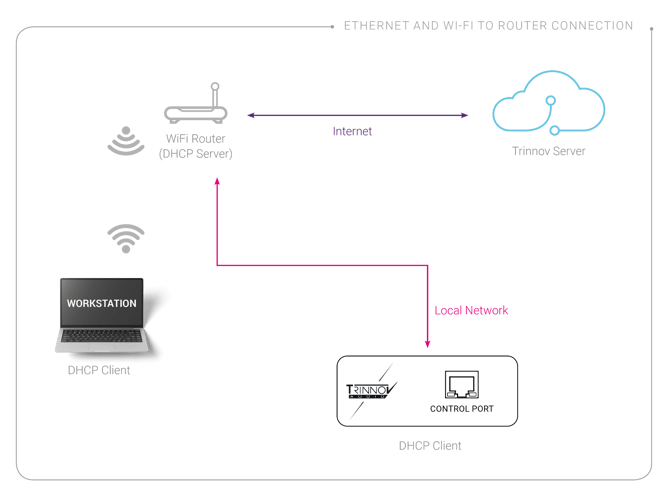
Setup:
- Processor connected via Ethernet
- Computer connected to the same router via Wi-Fi
Requirements:
- Same subnet
- DHCP enabled
Useful for laptops/tablets without Ethernet.
Switch → Router Connection
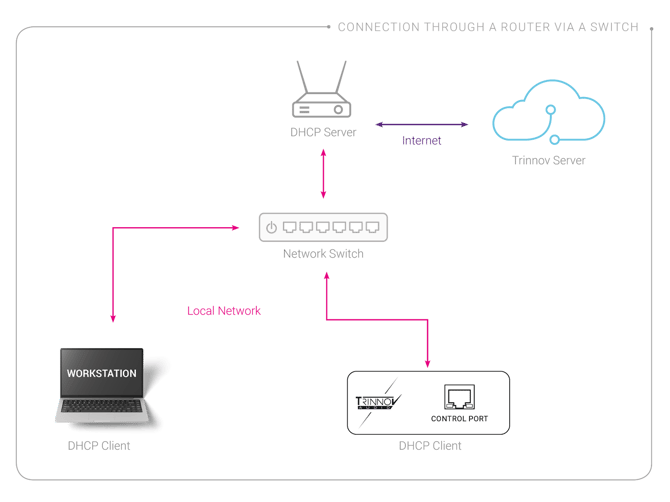
This is the most common installation topology in home theaters and professional studios.
Setup:
- Processor(s) connected to a switch
- Switch connected to the main router
- Router handles DHCP and network management
Recommended for systems with multiple networked devices (NAS, streamers, Dante interfaces, etc.).