![Logo_Trinnov_Black_CMJN.png]](https://kb.trinnov.com/hs-fs/hubfs/ISE%202024/Logo_Trinnov_Black_CMJN.png?height=50&name=Logo_Trinnov_Black_CMJN.png)
Summary:
- Introduction
- Basic Mode
- Expert Mode
- How to identify pages support both modes
- Mode switching behavior
- Best Practices
Introduction
The Trinnov interface offers two operating modes on selected pages: Basic and Expert.
This dual-mode approach provides a streamlined experience for most users while still enabling the depth and flexibility required for complex or highly customized systems. The goal is simple: offer clarity for newcomers without limiting expert users
Basic Mode
Basic mode is the default view whenever a page supports both modes.
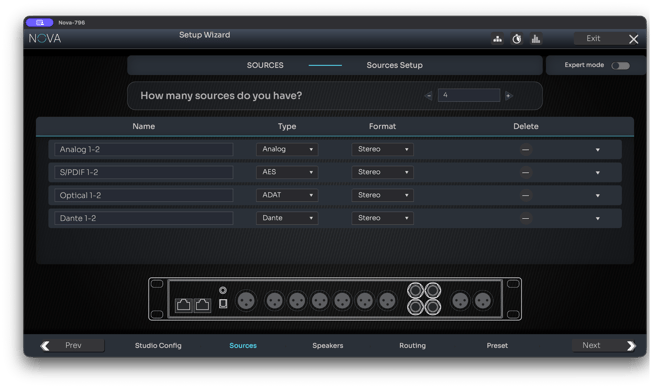
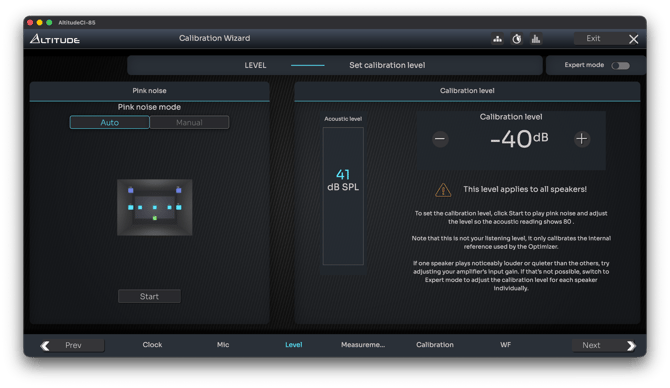
Basic mode exemples: Source on NOVA - Calibration level on Altitude
It is designed to:
- Present only the essential controls
- Reduce complexity and prevent errors
- Allow faster, more intuitive configuration
- Meet the needs of the majority of users and installations
Basic mode ensures a predictable, easy-to-follow workflow without exposing settings that are normally unnecessary for standard systems.
Expert Mode
Expert mode unlocks the full set of configuration and calibration tools available on that page.
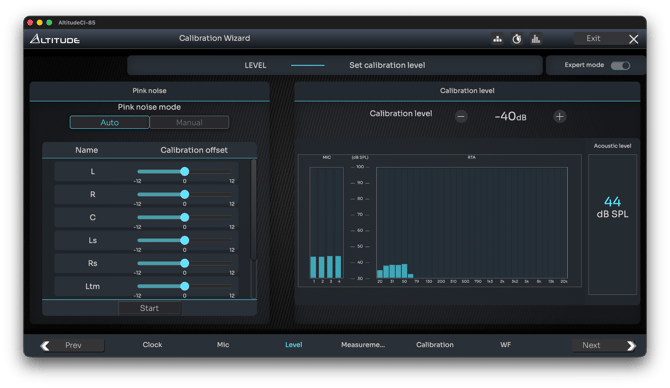
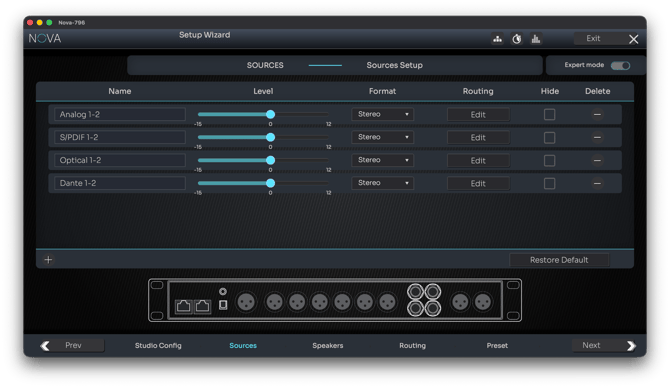
Expert mode exemples: Source on NOVA - Calibration level on Altitude
It is intended for:
- Experienced users
- Professional installers
- Advanced troubleshooting
- Highly specific or non-standard system designs
Expert mode exposes deeper routing, calibration, or processing options as needed.
This ensures Trinnov systems can handle any installation, from straightforward home cinemas to complex pro-audio environments, without overwhelming new users.
How to Identify Pages Supporting Both Modes
Pages that offer both modes display an Expert toggle in the top-right corner of the interface.
When the toggle is available, you can switch between Basic and Expert instantly.
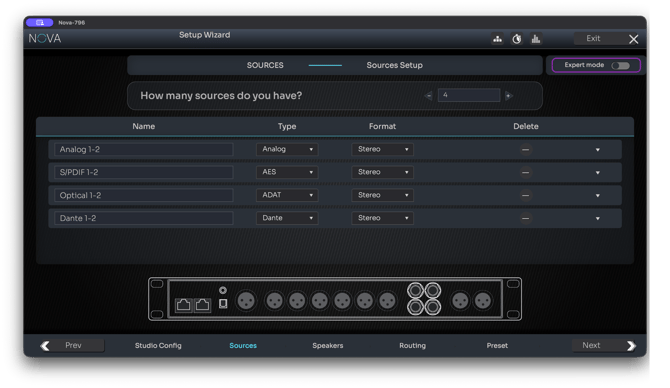
A configuration page on NOVA showing the toggle button
If no toggle is shown, the page supports only a single mode.
Mode Switching Behavior
Modes Are Page-Specific
Basic vs Expert selection applies only to the current page.
This means you can:
- Configure Inputs in Expert mode
- Keep Optimizer or Outputs in Basic mode
- Move freely between modes as needed
Each page handles its own mode independently.
Switching Back to previous mode May Require Resetting
Some settings created in a certain mode cannot be represented in the other mode. This is the case of the Target Curve tool.
When this happens:
- The interface displays a clear warning message
- You are given two options:
- Return to previous mode and keep your configuration
- Reset the page’s settings to revert to compatible defaults
This prevents accidental loss or misinterpretation of complex settings.
Best Practices
- Begin in Basic mode unless your system has special requirements
- Switch to Expert mode only when advanced control is needed
- Avoid changing modes mid-configuration to prevent resets
- For complex or professional installations, consider staying in Expert mode throughout setup